W3Schools
home HOME Tutorials | References | Examples | Forum | About
Search W3Schools :

HTML Basic
HTML HOME
HTML Introduction
HTML Elements
HTML Basic Tags
HTML Attributes
HTML Formatting
HTML Entities
HTML Links
HTML Frames
HTML Tables
HTML Lists
HTML Forms
HTML Images
HTML Background
HTML Colors
HTML Colorvalues
HTML Colornames

HTML Quick List

HTML Advanced
HTML Layout
HTML Fonts
HTML 4.0 Why
HTML Styles
HTML Head
HTML Meta
HTML URLs
HTML Scripts
HTML Attributes
HTML Events
HTML URL-encode
HTML Webserver
HTML Summary

Examples/Quiz
HTML Examples
HTML Quiz
HTML Exam

References
HTML Tag List
HTML Attributes
HTML Events
HTML Colornames
HTML ASCII
HTML Entities
HTML URL Encode
HTTP Messages

Selected Reading
Web Statistics
Web Glossary
Web Hosting
Web Quality

W3Schools Tutorials
W3Schools Forum

Helping W3Schools

Introduction to HTML

Previous Next

What is an HTML File?

  • HTML stands for Hyper Text Markup Language
  • An HTML file is a text file containing small markup tags
  • The markup tags tell the Web browser how to display the page
  • An HTML file must have an htm or html file extension
  • An HTML file can be created using a simple text editor

Do You Want to Try It?

If you are running Windows, start Notepad.

If you are on a Mac, start SimpleText.

In OSX start TextEdit and change the following preferences: Open the "Format" menu and select "Plain text" instead of "Rich text". Then open the "Preferences" window under the "Text Edit" menu and select "Ignore rich text commands in HTML files". Your HTML code will probably not work if you do not change the preferences above!

Type in the following text:

<html>
<head>
<title>Title of page</title>
</head>
<body>
This is my first homepage. <b>This text is bold</b>
</body>
</html>

Save the file as "mypage.htm". 

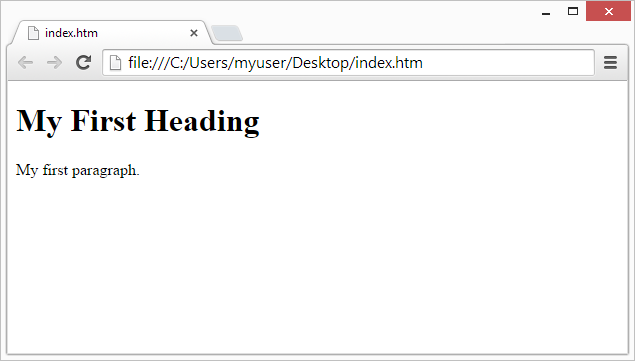
Start your Internet browser. Select "Open" (or "Open Page") in the File menu of your browser. A dialog box will appear. Select "Browse" (or "Choose File") and locate the HTML file you just created - "mypage.htm" - select it and click "Open". Now you should see an address in the dialog box, for example "C:\MyDocuments\mypage.htm". Click OK, and the browser will display the page.


Example Explained

The first tag in your HTML document is <html>. This tag tells your browser that this is the start of an HTML document. The last tag in your document is </html>. This tag tells your browser that this is the end of the HTML document.

The text between the <head> tag and the </head> tag is header information. Header information is not displayed in the browser window.

The text between the <title> tags is the title of your document. The title is displayed in your browser's caption.

The text between the <body> tags is the text that will be displayed in your browser.

The text between the <b> and </b> tags will be displayed in a bold font.


HTM or HTML Extension?

When you save an HTML file, you can use either the .htm or the .html extension. We have used .htm in our examples. It might be a bad habit inherited from the past when some of the commonly used software only allowed three letter extensions.

With newer software we think it will be perfectly safe to use .html.


Note on HTML Editors:

You can easily edit HTML files using a WYSIWYG (what you see is what you get) editor like FrontPage or Dreamweaver, instead of writing your markup tags in a plain text file.

However, if you want to be a skillful Web developer, we strongly recommend that you use a plain text editor to learn your primer HTML.


Frequently Asked Questions

Q: After I have edited an HTML file, I cannot view the result in my browser. Why?
A:
Make sure that you have saved the file with a proper name and extension like "c:\mypage.htm". Also make sure that you use the same name when you open the file in your browser.

Q: I have edited an HTML file, but the changes don't show in the browser. Why?
A:
A browser caches pages so it doesn't have to read the same page twice. When you have modified a page, the browser doesn't know that. Use the browser's refresh/reload button to force the browser to reload the page.

Q: What browser should I use?
A:
You can do all the training with all of the well-known browsers, like Internet Explorer, Firefox, Netscape, or Opera. However, some of the examples in our advanced classes require the latest versions of the browsers.

Q: Does my computer have to run Windows? What about a Mac?
A:
You can do all your training on a non-Windows computer like a Mac.


Previous Next


Ektron CMS400.NET Ektron - What do you want your website to do?
The Ektron Intranet
Take the video tour

The Ektron Intranet lets you do everything you need to do on your corporate intranet and everything you want to do... all with just one application.

What can you do with the Ektron Intranet?

Ektron

Navigate through content, documents, assets, colleagues and workgroups quickly and intuitively with enterprise search

Ektron

Communicate with friends and colleagues with forums, message boards and corporate blogging using the new Social Networking Platform

Ektron

Utilize the extensive out-of-the box features or customize your site through Ektron CMS400.NET's open architecture

Ektron

Promote collaboration in your organization through project workspaces where others can efficiently find information and work together

Ektron

Author/edit content, manage navigation, menus, audit trails, workflow and approvals with the best in breed Content Management

See why there are 20,000+ Ektron integrations worldwide.

Take the Video Tour TAKE THE VIDEO TOUR
Take the Video Tour or download a FREE TRIAL today.


Jump to: Top of Page or HOME or Printer Friendly Printer friendly page

W3Schools provides material for training only. We do not warrant the correctness of its contents. The risk from using it lies entirely with the user. While using this site, you agree to have read and accepted our terms of use and privacy policy.

Copyright 1999-2008 by Refsnes Data. All Rights Reserved.

Validate Validate W3C-WAI level A conformance icon W3Schools was converted to XHTML in December 1999
IISProtect
Password Protect
Your Web Pages
WEB HOSTING
$15 Domain Name
Registration
Save $20 / year!
Buy UK Domain Names
Register Domain Names
Cheap Domain Names
Cheap Web Hosting
Best Web Hosting
PHP MySQL Hosting
Top 10 Web Hosting
Web Hosting Company
UK Reseller Hosting
Web Hosting
WEB BUILDING
Website Templates
Flash Templates
Website Builder
Internet Business Opportunity
Custom Programming
FREE Trial or Demo
Web Content Manager
Forms,Web Alerts,RSS
Download XML editor
HTML Tutorial DVD
EDUCATION
US Web Design Schools
HTML Exam
TRAVEL
FUNC Cheap Flights
YELLOW PAGES
www.nettkatalogen.no
www.gulex.dk
www.gulex.se
www.gelbex.de
www.teloos.fi
www.teloos.fr
www.teloos.co.uk
www.teloos.at
www.teloos.de