
Playwright Screenshots and Videos
Playwright Screenshots and Videos
Playwright can take a picture of the page at any point in a test, and record a video of the whole test.
You can take screenshots yourself with page.screenshot().
Or you can let Playwright save screenshots and videos automatically when a test fails.
Take a Screenshot
Call page.screenshot() with a path to save a PNG file:
Example
tests/screenshots.spec.js
// @ts-check
import { test, expect } from '@playwright/test';
test('take screenshots', async ({ page }) => {
await page.goto('https://www.w3schools.com/playwright/practice/todo.html');
await page.getByPlaceholder('What needs to be done?').fill('Learn Playwright');
await page.getByRole('button', { name: 'Add' }).click();
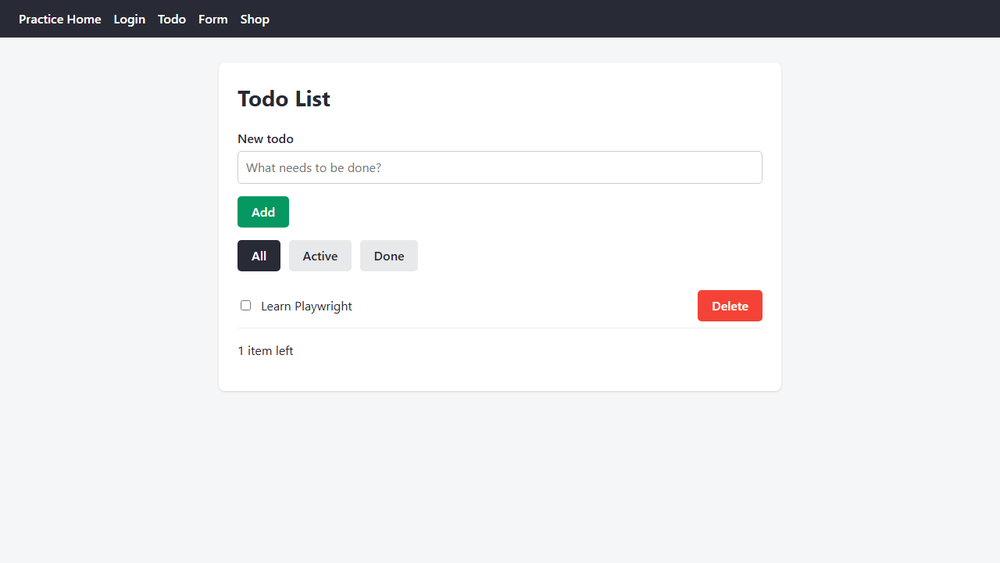
await page.screenshot({ path: 'screenshots/todo.png' });
await page.screenshot({ path: 'screenshots/todo-full.png', fullPage: true });
await page.getByRole('list', { name: 'Todos' }).screenshot({ path: 'screenshots/todo-list.png' });
});
After the test runs, the project has a new screenshots folder:
screenshots/
todo-full.png
todo-list.png
todo.png
This is todo.png:
Screenshot Options
path: where to save the file. Folders are created if they do not existfullPage: true: takes the whole scrollable page, not only the visible partlocator.screenshot(): takes a picture of one element only, like the todo list above
The size of the screenshot is the size of the browser viewport, 1280 x 720 pixels for Desktop Chrome.
A full page screenshot is taller when the page is longer than the viewport.
The todo page is short, so todo-full.png has the same size as todo.png.
Note: Screenshots you save with a path are only pictures.
To compare a screenshot with an approved one and fail the test when they differ, use toHaveScreenshot().
You will learn it in the Visual Comparisons chapter.
Attach a Screenshot to the Report
If you leave out path, page.screenshot() does not save a file.
It returns the image as a buffer (the image data in memory).
testInfo is the second argument of the test function.
It holds information about the running test.
Use testInfo.attach() to add the image to the HTML report:
Example
tests/screenshots.spec.js
test('attach a screenshot to the report', async ({ page }, testInfo) => {
await page.goto('https://www.w3schools.com/playwright/practice/todo.html');
const screenshot = await page.screenshot();
await testInfo.attach('todo page', { body: screenshot, contentType: 'image/png' });
await expect(page).toHaveTitle(/Todo List/);
});
Run the file again, now with two tests:
Output:
Running 2 tests using 2 workers
[1/2] [chromium] › tests/screenshots.spec.js:4:1 › take screenshots
[2/2] [chromium] › tests/screenshots.spec.js:14:1 › attach a screenshot to the report
2 passed (2.1s)
Open the report with npx playwright show-report and click the test: the screenshot is shown under Attachments.
You can attach any file this way, for example a log file or a JSON response.
Screenshots and Videos on Failure
You do not have to add screenshot code to every test.
Set the screenshot and video options in playwright.config.js, and Playwright saves them for you:
Example
playwright.config.js
// @ts-check
import { defineConfig, devices } from '@playwright/test';
export default defineConfig({
testDir: './tests',
fullyParallel: true,
reporter: 'html',
use: {
trace: 'on-first-retry',
screenshot: 'only-on-failure',
video: 'retain-on-failure',
},
projects: [
{ name: 'chromium', use: { ...devices['Desktop Chrome'] } },
],
});
| Option | Common values |
|---|---|
screenshot | 'off' (default), 'on', 'only-on-failure' |
video | 'off' (default), 'on', 'retain-on-failure', 'on-first-retry' |
'only-on-failure' takes a screenshot at the end of each failed test.
'retain-on-failure' records a video of every test, but deletes it when the test passes.
The trace option in the same config works the same way for traces, see Trace Viewer.
Where the Files Land
The file tests/login.spec.js has two tests.
The first test, "student can log in", passes.
The second test, shown here, fails, because the expected error text is wrong:
Example
tests/login.spec.js
test('wrong password shows an error', async ({ page }) => {
await page.goto('https://www.w3schools.com/playwright/practice/login.html');
await page.getByLabel('Username').fill('student');
await page.getByLabel('Password').fill('wrong');
await page.getByRole('button', { name: 'Log in' }).click();
await expect(page.getByRole('alert')).toHaveText('Wrong password.');
});
The output lists the screenshot and the video of the failed test:
Output:
Running 2 tests using 2 workers
[1/2] [chromium] › tests/login.spec.js:12:1 › wrong password shows an error
[2/2] [chromium] › tests/login.spec.js:4:1 › student can log in
1) [chromium] › tests/login.spec.js:12:1 › wrong password shows an error ─────────────────────────
Error: expect(locator).toHaveText(expected) failed
Locator: getByRole('alert')
Expected: "Wrong password."
Received: "Wrong username or password."
Timeout: 5000ms
attachment #1: screenshot (image/png) ──────────────────────────────────────────────────────────
test-results/login-wrong-password-shows-an-error-chromium/test-failed-1.png
────────────────────────────────────────────────────────────────────────────────────────────────
attachment #2: video (video/webm) ──────────────────────────────────────────────────────────────
test-results/login-wrong-password-shows-an-error-chromium/video.webm
────────────────────────────────────────────────────────────────────────────────────────────────
Error Context: test-results/login-wrong-password-shows-an-error-chromium/error-context.md
1 failed
[chromium] › tests/login.spec.js:12:1 › wrong password shows an error ──────────────────────────
1 passed (8.5s)
All files are saved in the test-results folder, in one folder per failed test:
test-results/
login-wrong-password-shows-an-error-chromium/
error-context.md
test-failed-1.png
video.webm
error-context.md is a text file that describes the page at the moment the test failed.
The passing test has no folder, because nothing was kept for it.
The screenshot and the video are also attached to the HTML report, so you can watch the video in the report.
Note: Playwright empties the test-results folder at the start of every run.
Copy files you want to keep to another folder.







