
Playwright Visual Comparisons
Playwright Visual Comparisons
A visual comparison test takes a screenshot of the page, and compares it with a screenshot that you saved before.
If the pixels are different, the test fails.
This catches changes that other assertions miss, like a broken layout, a wrong color or a missing icon.
The saved screenshot is called the baseline (Playwright also calls it a snapshot).
Write a Screenshot Test
Use expect(page).toHaveScreenshot() for the whole page, or expect(locator).toHaveScreenshot() for one element:
Example
tests/visual.spec.js
// @ts-check
import { test, expect } from '@playwright/test';
test('todo page looks right', async ({ page }) => {
await page.goto('todo.html');
await expect(page).toHaveScreenshot();
});
test('add form looks right', async ({ page }) => {
await page.goto('todo.html');
await expect(page.locator('#add-form')).toHaveScreenshot('add-form.png');
});
- Without a name, Playwright names the file after the test
- With a name, like
'add-form.png', the file gets that name - The locator screenshot only contains the form, so changes elsewhere on the page do not affect it
Like other expect checks, toHaveScreenshot() waits: it takes screenshots until two in a row are the same, then compares.
It also turns off CSS animations, so they do not cause random failures.
The First Run Creates the Baseline
The first time you run the test, there is nothing to compare with.
Playwright saves the screenshot as the new baseline, and the test fails:
Output:
Running 2 tests using 2 workers
[1/2] [chromium] › tests/visual.spec.js:4:1 › todo page looks right
[2/2] [chromium] › tests/visual.spec.js:9:1 › add form looks right
1) [chromium] › tests/visual.spec.js:4:1 › todo page looks right ─────────────────────────────────
Error: A snapshot doesn't exist at /home/user/my-project/tests/visual.spec.js-snapshots/todo-page-looks-right-1-chromium-win32.png, writing actual.
4 | test('todo page looks right', async ({ page }) => {
5 | await page.goto('todo.html');
> 6 | await expect(page).toHaveScreenshot();
| ^
7 | });
8 |
9 | test('add form looks right', async ({ page }) => {
at /home/user/my-project/tests/visual.spec.js:6:3
2) [chromium] › tests/visual.spec.js:9:1 › add form looks right ──────────────────────────────────
Error: A snapshot doesn't exist at /home/user/my-project/tests/visual.spec.js-snapshots/add-form-chromium-win32.png, writing actual.
9 | test('add form looks right', async ({ page }) => {
10 | await page.goto('todo.html');
> 11 | await expect(page.locator('#add-form')).toHaveScreenshot('add-form.png');
| ^
12 | });
13 |
at /home/user/my-project/tests/visual.spec.js:11:3
2 failed
[chromium] › tests/visual.spec.js:4:1 › todo page looks right ──────────────────────────────────
[chromium] › tests/visual.spec.js:9:1 › add form looks right ───────────────────────────────────
This is on purpose: a new baseline should be looked at by a person before you trust it.
The baselines are saved in a folder next to the test file:
tests/
visual.spec.js
visual.spec.js-snapshots/
add-form-chromium-win32.png
todo-page-looks-right-1-chromium-win32.png
Each file name ends with the project name (chromium) and the operating system (win32 is Windows).
Open the images and check that they look right.
Then commit them to git together with the test.
Run the tests again.
Now Playwright compares the new screenshots with the baselines, and they match:
Output:
Running 2 tests using 2 workers
[1/2] [chromium] › tests/visual.spec.js:4:1 › todo page looks right
[2/2] [chromium] › tests/visual.spec.js:9:1 › add form looks right
2 passed (2.2s)
When the Page Changes
To see a failure without changing the app, make the test change the page: add a todo before the screenshot.
Example
test('todo page looks right', async ({ page }) => {
await page.goto('todo.html');
await page.getByPlaceholder('What needs to be done?').fill('Learn Playwright');
await page.getByRole('button', { name: 'Add' }).click();
await expect(page).toHaveScreenshot();
});
The screenshot no longer matches the baseline:
Output:
Running 2 tests using 2 workers
[1/2] [chromium] › tests/visual.spec.js:11:1 › add form looks right
[2/2] [chromium] › tests/visual.spec.js:4:1 › todo page looks right
1) [chromium] › tests/visual.spec.js:4:1 › todo page looks right ─────────────────────────────────
Error: expect(page).toHaveScreenshot(expected) failed
3571 pixels (ratio 0.01 of all image pixels) are different.
Call log:
- Expect "toHaveScreenshot" with timeout 5000ms
- verifying given screenshot expectation
- taking page screenshot
- disabled all CSS animations
- waiting for fonts to load...
- fonts loaded
- 3571 pixels (ratio 0.01 of all image pixels) are different.
- waiting 100ms before taking screenshot
- taking page screenshot
- disabled all CSS animations
- waiting for fonts to load...
- fonts loaded
- captured a stable screenshot
- 3571 pixels (ratio 0.01 of all image pixels) are different.
1 failed
[chromium] › tests/visual.spec.js:4:1 › todo page looks right ──────────────────────────────────
1 passed (3.3s)
The locator test still passes, because the form itself did not change.
Playwright saves three images in the test-results folder: the expected image, the actual image and a diff image (an image that shows only what is different).
Open the HTML report (npx playwright show-report) and click the failed test to see them:
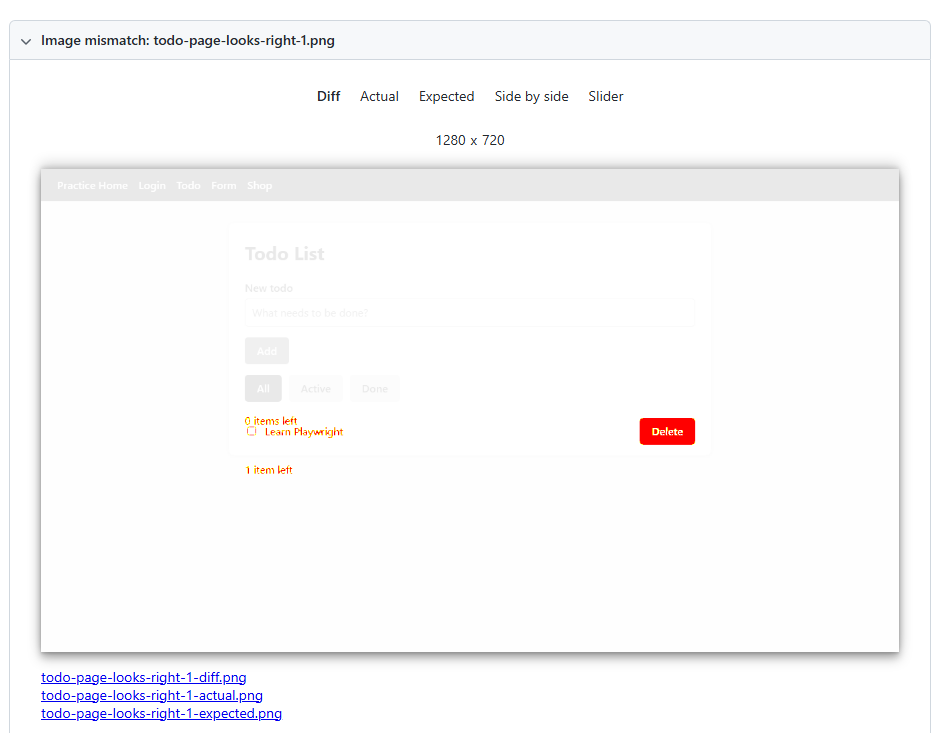
The Diff tab shows the page in light colors, with the changed pixels in red.
Here you can see the new todo, and the count text that moved.
The Actual and Expected tabs show the two screenshots, and Side by side and Slider help you compare them.
Update the Baselines
If the change is correct (the page is supposed to look like this now), update the baselines:
Example
npx playwright test --update-snapshots
Output:
Running 2 tests using 2 workers
[1/2] [chromium] › tests/visual.spec.js:11:1 › add form looks right
[2/2] [chromium] › tests/visual.spec.js:4:1 › todo page looks right
[chromium] › tests/visual.spec.js:4:1 › todo page looks right
/home/user/my-project/tests/visual.spec.js-snapshots/todo-page-looks-right-1-chromium-win32.png is re-generated, writing actual.
2 passed (3.7s)
Only the baseline that did not match was written again.
To rewrite every baseline, use --update-snapshots=all.
Look at the new images before you commit them, just like the first time.
The next chapter, Visual Options, shows how to allow small differences, hide parts that change, and handle baselines on other systems.







