
Git GitLab Add SSH
Add SSH to GitLab
 GitHub
 Bitbucket
 GitLab
Now that you have generated your SSH key, you need to add your public key to your GitLab account.
Copy Your Public SSH Key
- On Windows (Git Bash):
clip < ~/.ssh/id_ed25519.pub - On macOS:
pbcopy < ~/.ssh/id_ed25519.pub - On Linux:
cat ~/.ssh/id_ed25519.pub(then copy manually)
Important: Complete these steps before you attempt to push, pull, or clone with SSH. This page assumes you have already generated your SSH key and added it to your SSH agent. If not, go back to the SSH setup section in the Getting Started guide.
Add the Key to GitLab
- Go to GitLab, click your profile picture in the lower left corner, and select Edit profile:

Then select "SSH keys", give the key a title, paste the public SSH key into the "Key" field, and click "Add Key":
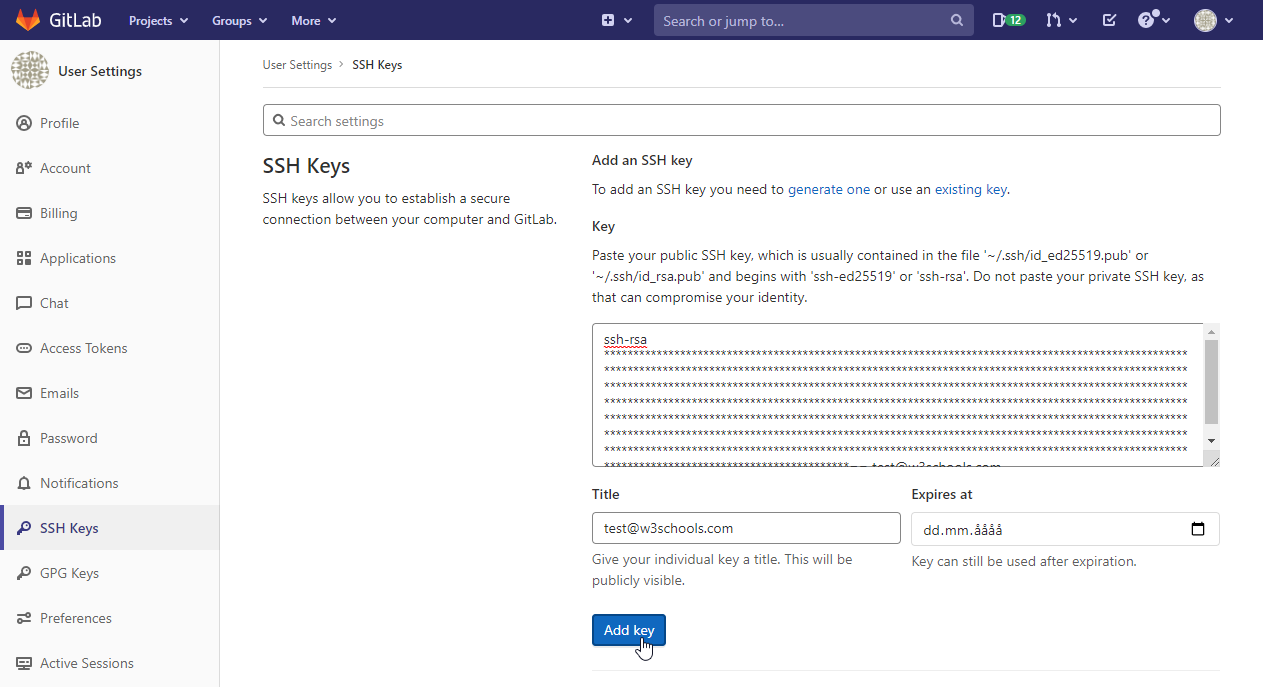
You will see your new SSH key added:

Next, you'll test your SSH connection and set your GitLab remote origin using SSH.