
Git Set Remote from GitLab
Set GitLab Remote Origin
 GitHub
 Bitbucket
 GitLab
Now that your SSH key is added to GitLab, you can securely connect your local repository to GitLab using SSH.
Test Your SSH Connection
First, test that your SSH connection to GitLab works:
Example
ssh -T git@gitlab.com
The authenticity of host 'gitlab.com (172.65.251.78)' can't be established.
ED25519 key fingerprint is SHA256:*******************************************.
This key is not known by any other names.
Are you sure you want to continue connecting (yes/no/[fingerprint])? yes
Warning: Permanently added 'gitlab.com' (ED25519) to the list of known hosts.
Enter passphrase for key '/Users/user/.ssh/id_ed25519':
Welcome to GitLab, @your-username!
If the last line contains your username on GitLab, you are successfully authenticated!
Get Your Repository's SSH Address
Note: The GitLab screenshots on this page show the default branch as master.
GitLab now names the default branch main, so you will see main where the screenshots show master.
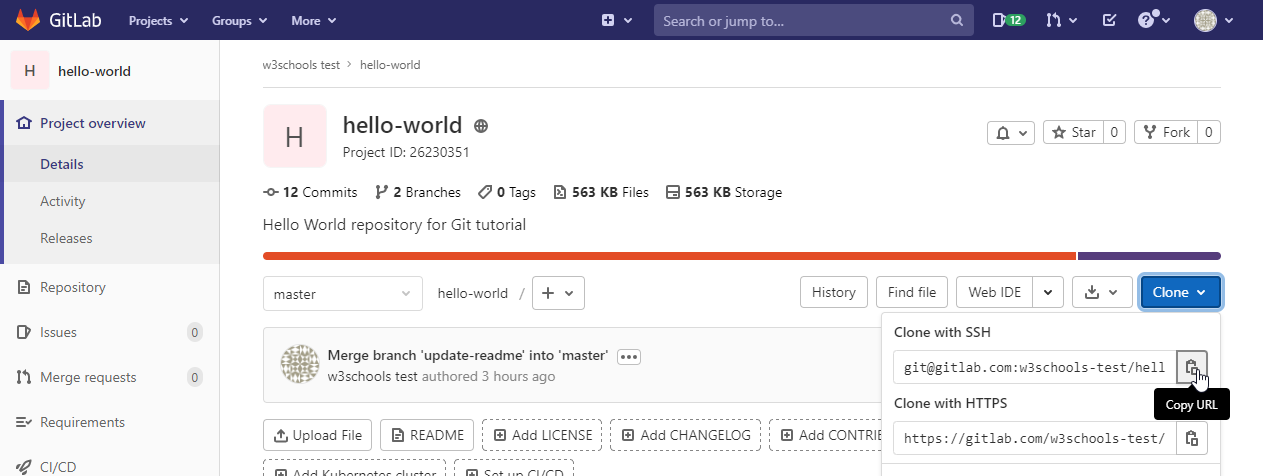
On GitLab, go to your repository and click the Clone button. Make sure SSH is selected, then copy the SSH URL (it starts with git@gitlab.com:):
Add or Update the Remote Origin
To add the remote origin (first time):
Example
git remote add origin git@gitlab.com:your-username/your-repo.gitTo update an existing remote to use SSH:
Example
git remote set-url origin git@gitlab.com:your-username/your-repo.gitCongratulations! You are now ready to use GitLab with SSH.