
Git GitLab Pages
Enable GitLab Pages
 GitHub
 Bitbucket
 GitLab
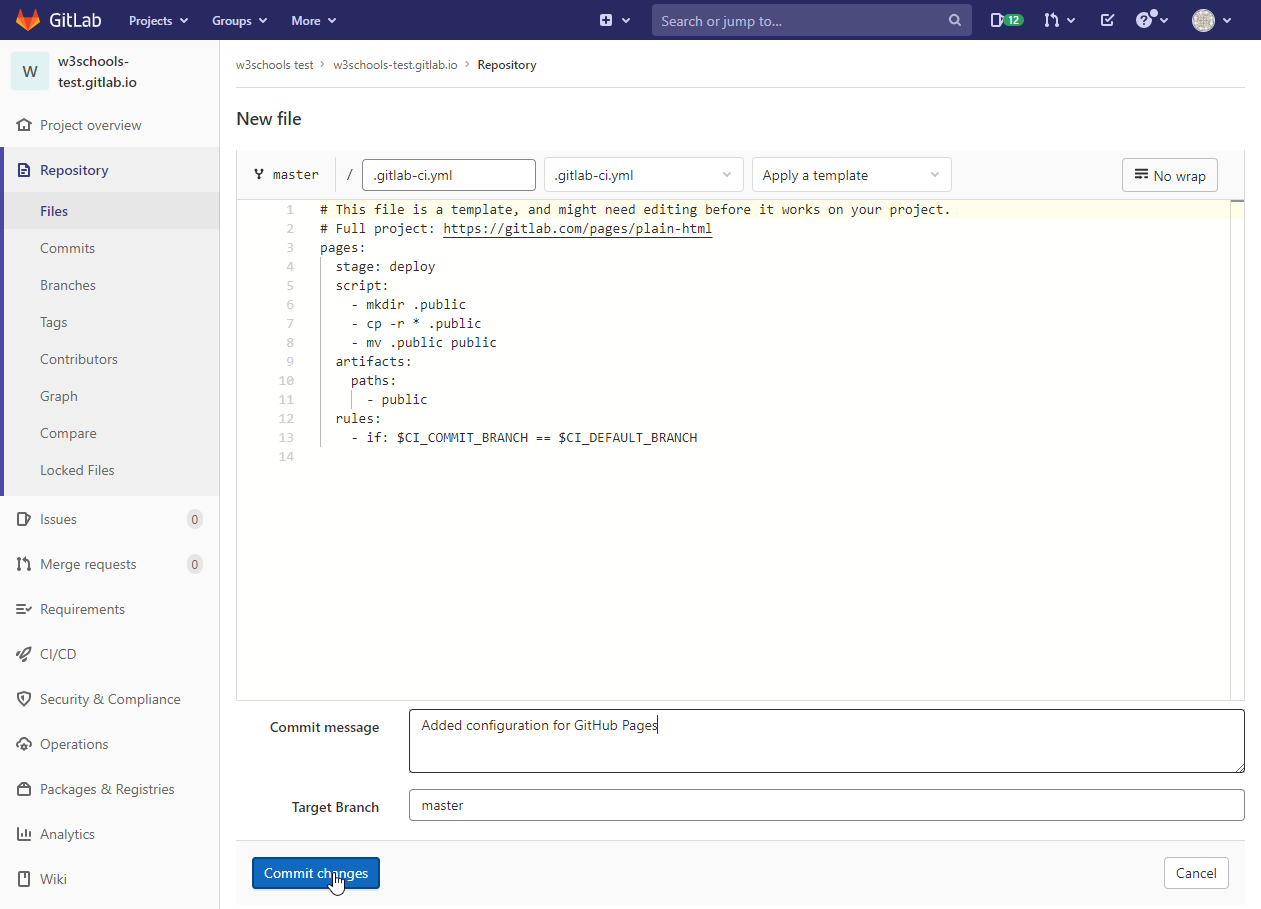
Note: The GitLab screenshots on this page show the default branch as master.
GitLab now names the default branch main, so you will see main where the screenshots show master.
GitLab Pages lets you publish a website directly from your repository. To enable it:
- Create a new repository named
your-username.gitlab.io. - Add your website files (like
index.html) to the repository. - Add a
.gitlab-ci.ymlfile with apagesjob (see below). - Push your changes to GitLab.

Example
git remote add origin https://gitlab.com/your-username/your-username.gitlab.io.git
git push -u origin main
Set Source Branch/Folder
GitLab Pages does not publish your files on its own. A CI/CD job named pages in your .gitlab-ci.yml file must copy the site into a folder named public and save it as an artifact. GitLab then publishes that folder.
Example .gitlab-ci.yml
pages:
  stage: deploy
  script:
    - mkdir .public
    - cp -r * .public
    - mv .public public
  artifacts:
    paths:
      - public
  rules:
    - if: $CI_COMMIT_BRANCH == $CI_DEFAULT_BRANCH
The rules line publishes the site only from the default branch (main). Edit the script lines to change which files are copied into public.
View Your Site
After enabling GitLab Pages, your site will be available at https://your-username.gitlab.io/ (or your custom domain).
Click the link to see your live site!
Disable GitLab Pages
To turn off your Pages site:
- Go to Settings > Pages.
- Click Remove or delete the configuration in
.gitlab-ci.yml. - Optionally, delete the repository if you no longer need it.