
Tkinter Timers
Run Code Later
Use after() to run a function after a number of milliseconds. 1000 milliseconds is 1 second:
Example
Show a message after 2 seconds:
import tkinter as tk
window = tk.Tk()
window.geometry("300x200")
def time_up():
label.config(text="Time is up!")
label = tk.Label(window, text="Wait...",
font=("Arial", 24))
label.pack(pady=20)
window.after(2000, time_up)
window.mainloop()
Result:
After 2 seconds:
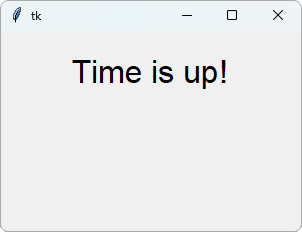
after() does not stop the program while it waits. The window works as normal, and the function runs when the time is up.
Note: Do not use time.sleep() in a Tkinter app. It stops the whole window, so the window does not update or react to clicks while it sleeps.
Repeat Every Second
To repeat something, let the function call after() again, with itself as the function:
Example
A clock that updates every second:
import tkinter as tk
import time
window = tk.Tk()
window.geometry("300x200")
def tick():
now = time.strftime("%H:%M:%S")
label.config(text=now)
window.after(1000, tick)
label = tk.Label(window,
font=("Arial", 32))
label.pack(pady=20)
tick()
window.mainloop()
Result:
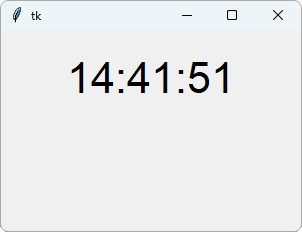
tick() shows the time, and asks to be run again in 1 second. That repeats for as long as the window is open.
time.strftime("%H:%M:%S") returns the time now, as hours, minutes and seconds. Read more in our time Module reference.
Countdown
To stop repeating, only call after() while there is more to do:
Example
Count down from 10 to 0:
import tkinter as tk
window = tk.Tk()
window.geometry("300x200")
count = 10
def countdown():
global count
label.config(text=count)
if count > 0:
count -= 1
window.after(1000, countdown)
label = tk.Label(window,
font=("Arial", 32))
label.pack(pady=20)
countdown()
window.mainloop()
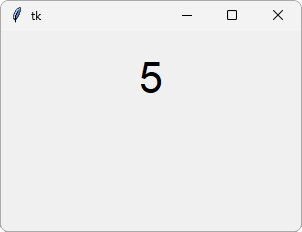
Result:
After 5 seconds:
Progress Bar
A ttk Progressbar shows how far a task has come, from 0 to 100:
Example
Fill a progress bar, 10 steps at a time:
import tkinter as tk
from tkinter import ttk
window = tk.Tk()
window.geometry("300x200")
progress = 0
def grow():
global progress
if progress < 100:
progress += 10
bar.config(value=progress)
window.after(500, grow)
bar = ttk.Progressbar(window, length=200)
bar.pack(pady=20)
grow()
window.mainloop()
Result:
After 2 seconds:
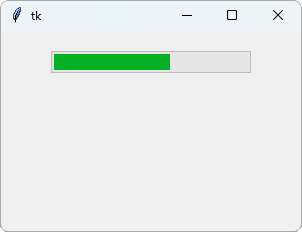
value sets how full the bar is, and length is the width of the bar in pixels.







