
Menu
×
   ❮     
HTML CSS JAVASCRIPT SQL PYTHON JAVA PHP C C++ C# AWS W3.CSS HOW TO BOOTSTRAP REACT MYSQL JQUERY EXCEL XML DJANGO NUMPY PANDAS NODEJS DSA TYPESCRIPT ANGULAR ANGULARJS GIT POSTGRESQL MONGODB ASP AI R GO KOTLIN SWIFT SASS VUE GEN AI SCIPY CYBERSECURITY DATA SCIENCE INTRO TO PROGRAMMING INTRO TO HTML & CSS BASH RUST TOOLS MATH

Python Tutorial

Python HOME Python Intro Python Get Started Python Syntax Python Output Python Comments Python Variables Python Data Types Python Numbers Python Casting Python Strings Python Booleans Python Operators Python Lists Python Tuples Python Sets Python Dictionaries Python If...Else Python Match Python While Loops Python For Loops Python Functions Python Range Python Arrays Python Iterators Python Modules Python Dates Python Math Python JSON Python RegEx Python PIP Python Try...Except Python String Formatting Python None Python User Input Python VirtualEnv

Python Classes

Python OOP Python Classes/Objects Python __init__ Method Python self Parameter Python Class Properties Python Class Methods Python Magic Methods Python Inheritance Python Polymorphism Python Encapsulation Python Inner Classes

File Handling

Python File Handling Python Read Files Python Write/Create Files Python Delete Files

Python Modules

NumPy Tutorial Pandas Tutorial SciPy Tutorial Django Tutorial Playwright Tutorial

Python Turtle

Turtle Intro Turtle Move and Turn Turtle Pen Turtle Position Turtle Colors Turtle Shapes Turtle Fill Turtle Text Turtle Events Turtle Animation Turtle Projects

Python Tkinter

Tkinter Intro Tkinter Label Tkinter Button Tkinter Entry Tkinter Layout Tkinter Events Tkinter Check and Radio Tkinter Messagebox Tkinter Listbox Tkinter Text Tkinter Canvas Tkinter ttk Tkinter Menu Tkinter Timers Tkinter Project Tkinter To-Do List

Python Matplotlib

Matplotlib Intro Matplotlib Get Started Matplotlib Pyplot Matplotlib Plotting Matplotlib Markers Matplotlib Line Matplotlib Labels Matplotlib Grid Matplotlib Subplot Matplotlib Scatter Matplotlib Bars Matplotlib Histograms Matplotlib Pie Charts

Machine Learning

Getting Started Mean Median Mode Standard Deviation Percentile Data Distribution Normal Data Distribution Scatter Plot Linear Regression Polynomial Regression Multiple Regression Scale Train/Test Decision Tree Confusion Matrix Hierarchical Clustering Logistic Regression Grid Search Categorical Data K-means Bootstrap Aggregation Cross Validation AUC - ROC Curve K-nearest neighbors

Python DSA

Python DSA Lists and Arrays Stacks Queues Linked Lists Hash Tables Trees Binary Trees Binary Search Trees AVL Trees Graphs Linear Search Binary Search Bubble Sort Selection Sort Insertion Sort Quick Sort Counting Sort Radix Sort Merge Sort

Python MySQL

MySQL Get Started MySQL Create Database MySQL Create Table MySQL Insert MySQL Select MySQL Where MySQL Order By MySQL Delete MySQL Drop Table MySQL Update MySQL Limit MySQL Join

Python MongoDB

MongoDB Get Started MongoDB Create DB MongoDB Collection MongoDB Insert MongoDB Find MongoDB Query MongoDB Sort MongoDB Delete MongoDB Drop Collection MongoDB Update MongoDB Limit

Python Cert

Python Certificate

Python How To

Remove List Duplicates Reverse a String Add Two Numbers

Python Examples

Python Examples Python Videos Python Compiler Python Exercises Python Quiz Python Challenges Python Practice Problems Python Server Python Syllabus Python Study Plan Python Interview Q&A Python Training

Python Reference

Python Overview Python Built-in Functions Python String Methods Python List Methods Python Dictionary Methods Python Tuple Methods Python Set Methods Python File Methods Python Keywords Python Exceptions Python Glossary

Module Reference

Built-in Modules Random Module Requests Module Statistics Module Math Module cMath Module

Tkinter Canvas


Share

Draw on a Canvas

A Canvas is an area where you can draw lines, shapes and text:

Example

Draw a line:

import tkinter as tk

window = tk.Tk()
window.geometry("300x200")

canvas = tk.Canvas(window, bg="white",
                   width=280, height=180)
canvas.pack(pady=10)

canvas.create_line(20, 20, 260, 160)

window.mainloop()

Result:
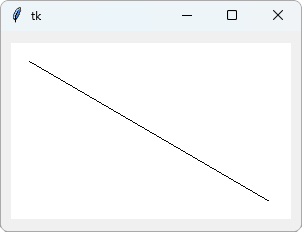
A window with a white canvas and a black line from the top left to the bottom right

Run Example »

bg sets the background color of the canvas. create_line() draws a line from the point (20, 20) to the point (260, 160).

Note: On a canvas, (0, 0) is the top left corner, and y grows downwards. This is different from turtle, where (0, 0) is in the middle and y grows upwards.


Shapes

create_rectangle() and create_oval() draw a shape inside a box. The four numbers are the top left corner and the bottom right corner of the box:

Example

Draw a square and a circle:

import tkinter as tk

window = tk.Tk()
window.geometry("300x200")

canvas = tk.Canvas(window, bg="white",
                   width=280, height=180)
canvas.pack(pady=10)

canvas.create_rectangle(20, 30, 120, 130,
                        fill="#04AA6D")
canvas.create_oval(160, 30, 260, 130,
                   fill="yellow")

window.mainloop()

Result:
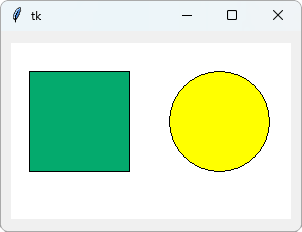
A window with a white canvas, a green square on the left and a yellow circle on the right

Run Example »

fill sets the color inside the shape. An oval inside a square box is a circle.


Text

create_text() writes text on the canvas. The point is the middle of the text:

Example

Write text on the canvas:

import tkinter as tk

window = tk.Tk()
window.geometry("300x200")

canvas = tk.Canvas(window, bg="white",
                   width=280, height=180)
canvas.pack(pady=10)

canvas.create_text(140, 90, text="Hello!",
                   font=("Arial", 24))

window.mainloop()

Result:
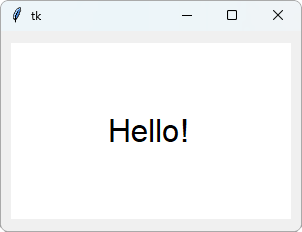
A window with a white canvas and the text Hello! in the middle

Run Example »


Draw With the Mouse

With bind() from the Tkinter Events chapter, the user can draw on the canvas:

Example

Draw a dot where the user clicks:

import tkinter as tk

window = tk.Tk()
window.geometry("300x200")

def draw_dot(event):
  x, y = event.x, event.y
  canvas.create_oval(x-5, y-5, x+5, y+5,
                     fill="red")

canvas = tk.Canvas(window, bg="white",
                   width=280, height=180)
canvas.pack(pady=10)
canvas.bind("<Button-1>", draw_dot)

window.mainloop()

Result:

After clicking in a few places:
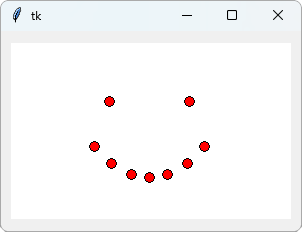
A window with a white canvas and red dots that form a smiling face

Run Example »

Each click draws a small circle, 10 pixels wide, around the point that was clicked.


Move a Shape

Each create_ method returns a number that identifies the shape. Use it with move() to move the shape:

Example

Move the ball with the right arrow key:

import tkinter as tk

window = tk.Tk()
window.geometry("300x200")

def move_right(event):
  canvas.move(ball, 10, 0)

canvas = tk.Canvas(window, bg="white",
                   width=280, height=180)
canvas.pack(pady=10)
ball = canvas.create_oval(20, 70, 60, 110,
                          fill="red")

window.bind("<Right>", move_right)

window.mainloop()

Result:

After pressing the right arrow key 8 times:
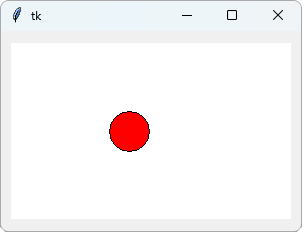
A window with a white canvas and a red ball that has moved to the right

Run Example »

move(ball, 10, 0) moves the ball 10 pixels to the right, and 0 pixels down.


Free account

Track your progress

XP earned 0 Day streak 0 Spaces 0 League —

New

Learn in Adventure Mode W3Schools Adventure App

Coding fundamentals as bite-sized lessons and challenges.

×

Contact Sales

If you want to use W3Schools services as an educational institution, team or enterprise, send us an e-mail:
sales@w3schools.com

Report Error

If you want to report an error, or if you want to make a suggestion, send us an e-mail:
help@w3schools.com

W3Schools is optimized for learning and training. Examples might be simplified to improve reading and learning. Tutorials, references, and examples are constantly reviewed to avoid errors, but we cannot warrant full correctness of all content. While using W3Schools, you agree to have read and accepted our terms of use, cookies and privacy policy.

Copyright 1999-2026 by W3Schools. All Rights Reserved. W3Schools is Powered by W3.CSS.



