Turtle Events
Control the Turtle
An event is something the user does, like pressing a key or clicking the mouse.
Turtle can run a function when an event happens. This lets the user control the turtle while the program is running.
Press a Key
Use onkey() to run a function when a key is pressed:
Example
Move forward when the space bar is pressed:
import turtle
t = turtle.Turtle()
screen = turtle.Screen()
def move():
t.forward(20)
screen.onkey(move, "space")
screen.listen()
turtle.done()
Result:
After pressing the space bar 4 times:
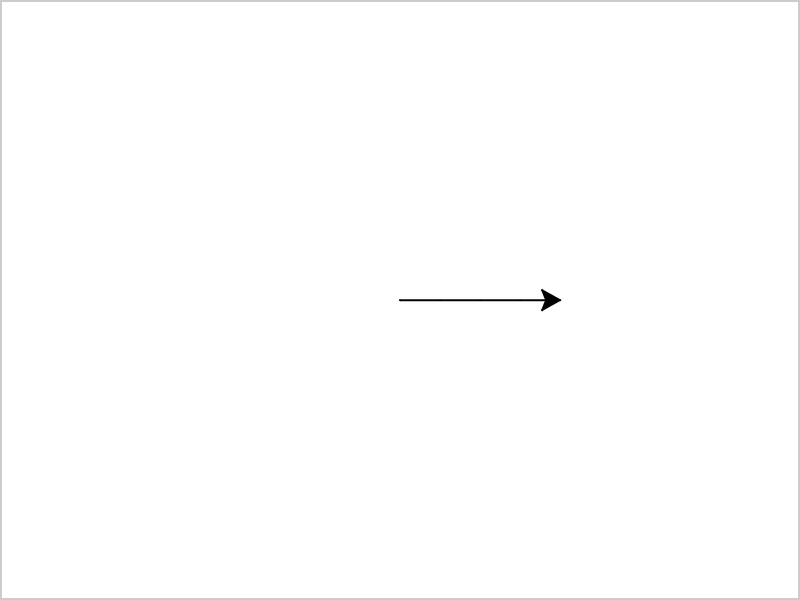
screen = turtle.Screen()gets the window that the turtle draws inscreen.onkey(move, "space")runsmove()each time the space bar is pressedscreen.listen()makes the window listen for key presses
Note: Write move without parentheses. With parentheses, the function runs once right away, and not when the key is pressed.
If nothing happens when you press a key, click in the turtle window first, so that it gets the key presses.
Arrow Keys
Connect each arrow key to its own function, to steer the turtle around:
Example
Steer the turtle with the arrow keys:
import turtle
t = turtle.Turtle()
screen = turtle.Screen()
def forward():
t.forward(20)
def left():
t.left(30)
def right():
t.right(30)
screen.onkey(forward, "Up")
screen.onkey(left, "Left")
screen.onkey(right, "Right")
screen.listen()
turtle.done()
Result:
After pressing some arrow keys:
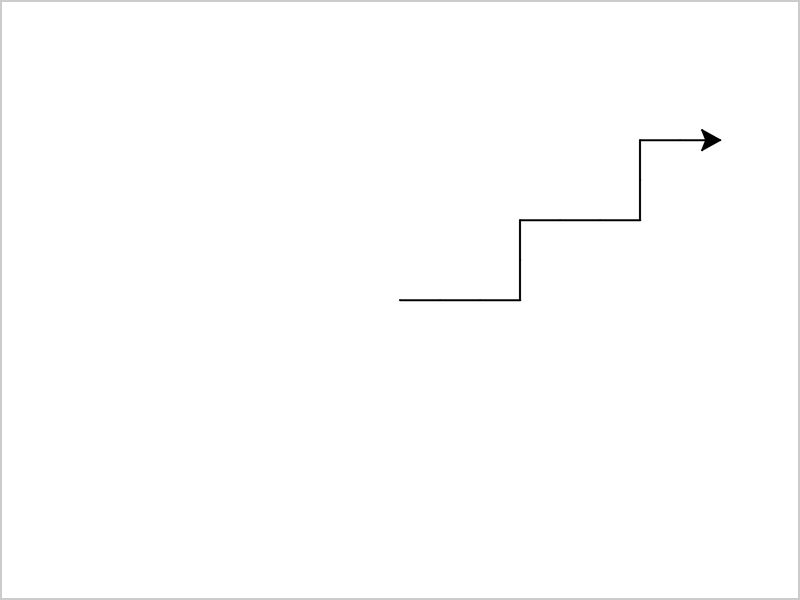
The arrow keys are called "Up", "Down", "Left" and "Right". Letter keys are written as the letter, like "a".
Mouse Clicks
Use onclick() to run a function when the user clicks in the window. The function gets the x and y position of the click:
Example
Move the turtle to where the user clicks:
import turtle
t = turtle.Turtle()
screen = turtle.Screen()
screen.onclick(t.goto)
turtle.done()
Result:
After clicking in three places:
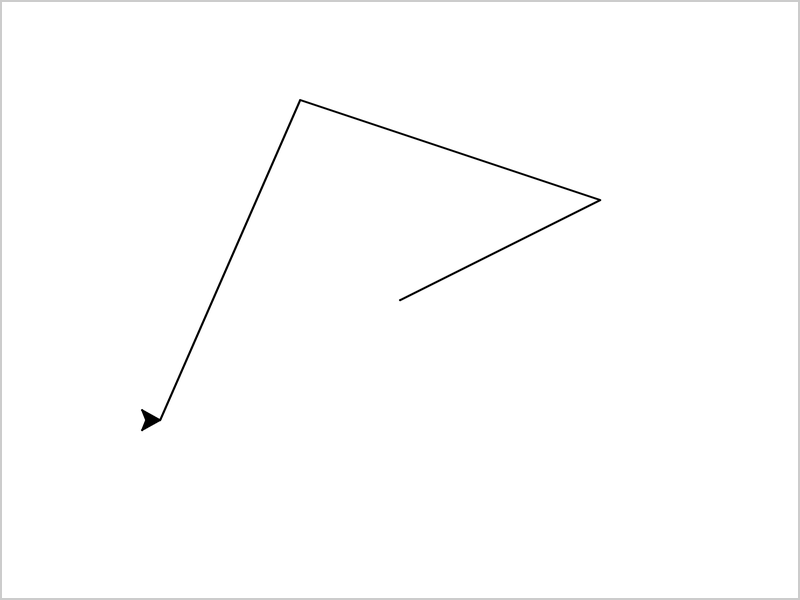
t.goto takes an x and a y, so it can be used as the click function directly. Again, there are no parentheses after it.
Your Own Click Function
Write a function with x and y parameters, to decide what happens when the user clicks:
Example
Draw a dot where the user clicks:
import turtle
t = turtle.Turtle()
screen = turtle.Screen()
def draw_dot(x, y):
t.penup()
t.goto(x, y)
t.dot(20, "red")
screen.onclick(draw_dot)
turtle.done()
Result:
After clicking in four places: