
Tkinter Label
Show Text With a Label
A Label shows text in the window:
Example
Show some text:
import tkinter as tk
window = tk.Tk()
window.geometry("300x200")
label = tk.Label(window, text="Hello!")
label.pack()
window.mainloop()
Result:
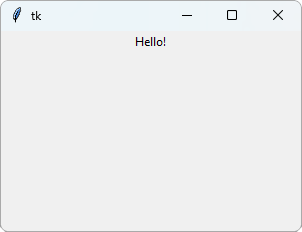
tk.Label() creates the label. The first argument, window, is where the label goes. text is the text to show.
pack() places the label in the window, at the top and in the middle. Without pack(), the label is created, but you will not see it.
You will learn more ways to place widgets in the Tkinter Layout chapter.
Font
Use font to set the font name and size:
Example
Show the text in a large font:
import tkinter as tk
window = tk.Tk()
window.geometry("300x200")
label = tk.Label(window, text="Hello!",
font=("Arial", 24))
label.pack()
window.mainloop()
Result:
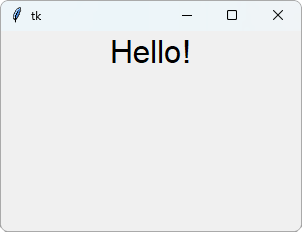
The font is written as a tuple with the font name and the size.
Colors
Use fg to set the text color, and bg to set the background color:
Example
White text on a green background:
import tkinter as tk
window = tk.Tk()
window.geometry("300x200")
label = tk.Label(window, text="Hello!",
fg="white",
bg="#04AA6D")
label.pack()
window.mainloop()
Result:
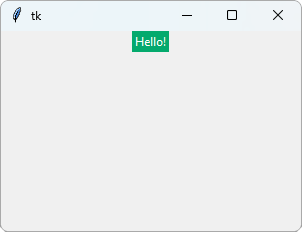
fg is short for foreground. You can use color names like "red" and "yellow", or hex colors like "#04AA6D".
Padding
Use padx and pady to add space around the text, inside the label:
Example
Add space around the text:
import tkinter as tk
window = tk.Tk()
window.geometry("300x200")
label = tk.Label(window, text="Hello!",
bg="yellow",
padx=20, pady=10)
label.pack()
window.mainloop()
Result:
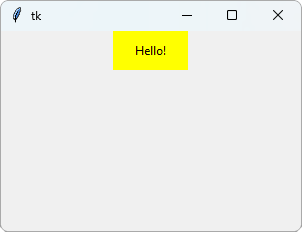
padx adds space to the left and right, and pady adds space above and below.
More Than One Label
Each pack() places the widget under the one before it:
Example
Show two labels:
import tkinter as tk
window = tk.Tk()
window.geometry("300x200")
label1 = tk.Label(window, text="First")
label1.pack()
label2 = tk.Label(window, text="Second")
label2.pack()
window.mainloop()
Result:
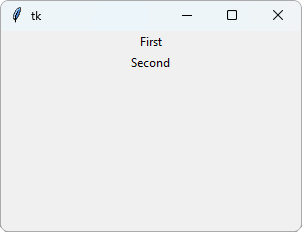
When you have more than one label, give them different variable names, like label1 and label2.







