
Turtle Text
Write Text
Use write() to write text where the turtle is:
Example
Write some text:
import turtle
t = turtle.Turtle()
t.write("Hello!")
turtle.done()
Result:
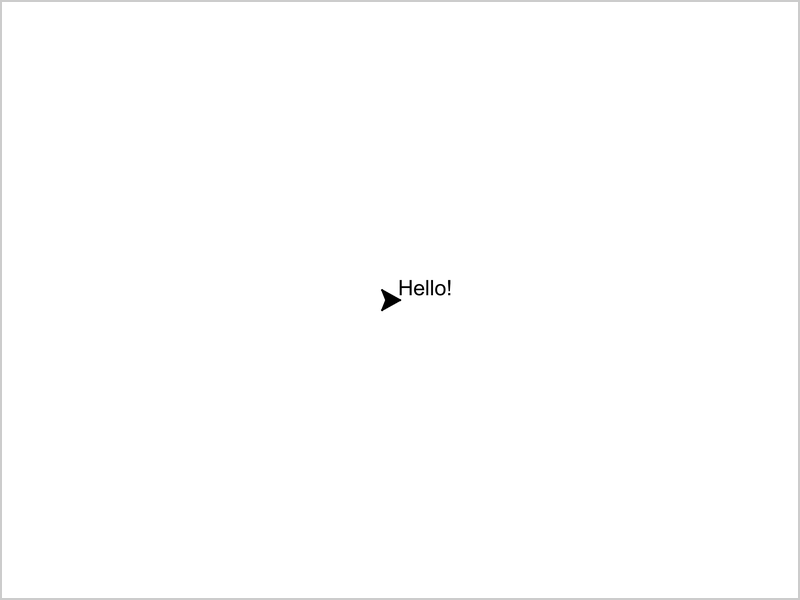
The text starts at the turtle, and is written in a small font by default.
Font and Size
Use font to choose the font name, the size and the style:
Example
Write text in a larger font:
import turtle
t = turtle.Turtle()
t.write("Hello!",
font=("Arial", 24, "normal"))
turtle.done()
Result:
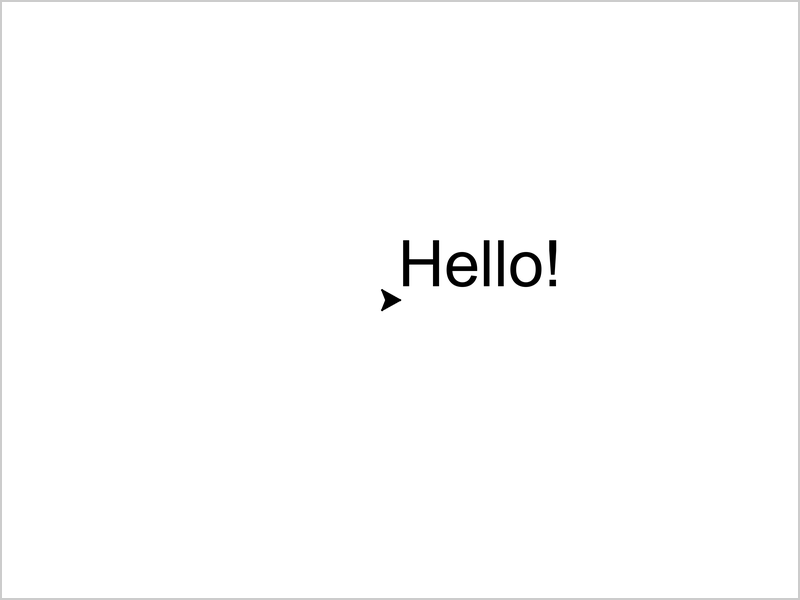
The font is a tuple with three values: the font name, the size and the style.
The style can be "normal", "bold" or "italic".
Align the Text
Use align to choose where the text goes, compared to the turtle. It can be "left" (the default), "center" or "right":
Example
Center the text on the turtle:
import turtle
t = turtle.Turtle()
t.hideturtle()
t.write("Hello!", align="center",
font=("Arial", 24, "bold"))
turtle.done()
Result:

hideturtle() hides the turtle, so that it does not cover the text.
Label a Drawing
Move the turtle with penup() and goto(), and write text on top of a drawing:
Example
Write a word inside a circle:
import turtle
t = turtle.Turtle()
t.color("orange")
t.begin_fill()
t.circle(50)
t.end_fill()
t.penup()
t.goto(0, 40)
t.color("black")
t.write("Sun", align="center",
font=("Arial", 16, "bold"))
t.hideturtle()
turtle.done()
Result:
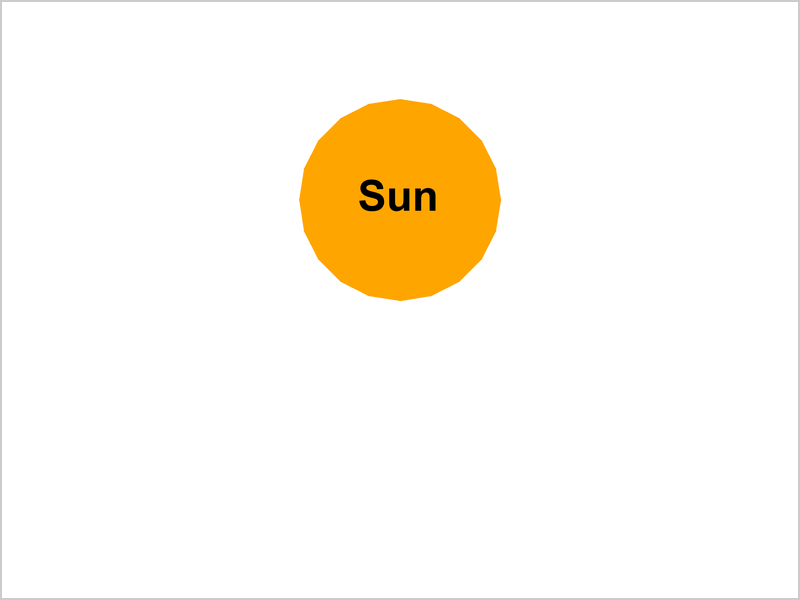
The text gets the pen color, so the code changes the color to black before writing.
Change the Text
Use clear() to remove everything the turtle has drawn and written. Then you can write new text:
Example
Replace the text Ready with Go!:
import turtle
t = turtle.Turtle()
t.hideturtle()
t.write("Ready", align="center",
font=("Arial", 24, "bold"))
t.clear()
t.write("Go!", align="center",
font=("Arial", 24, "bold"))
turtle.done()
Result:

clear() does not move the turtle. Use it when text needs to change, like the score in a game.







