
Tkinter Text
Text With Many Lines
An Entry only holds one line of text. For longer text, like a note or a message, use a Text widget:
Example
Create a text box:
import tkinter as tk
window = tk.Tk()
window.geometry("300x200")
text_box = tk.Text(window, width=30,
height=5)
text_box.pack()
window.mainloop()
Result:
After typing a short message:
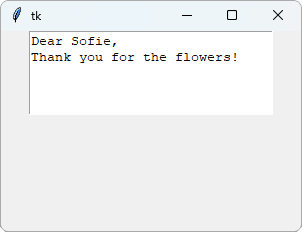
width is the number of characters per line, and height is the number of lines.
Add Text With Code
Use insert() to put text in the text box:
Example
Add two lines of text:
import tkinter as tk
window = tk.Tk()
window.geometry("300x200")
text_box = tk.Text(window, width=30,
height=5)
text_box.pack()
text_box.insert("1.0", "Line 1\nLine 2")
window.mainloop()
Result:
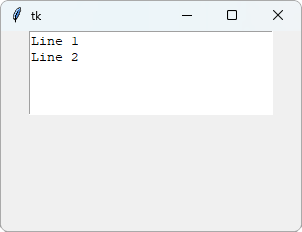
"1.0" is a position in the text: line 1, character 0, which is the very start.
Lines are counted from 1, and characters are counted from 0.
\n starts a new line. Read more in our Escape Characters chapter.
Get the Text
Use get() with a start and an end position to read the text:
Example
Count the words:
import tkinter as tk
window = tk.Tk()
window.geometry("300x200")
def count():
content = text_box.get("1.0", tk.END)
words = len(content.split())
label.config(text=f"Words: {words}")
text_box = tk.Text(window, width=30,
height=5)
text_box.pack()
button = tk.Button(window, text="Count",
command=count)
button.pack()
label = tk.Label(window)
label.pack()
window.mainloop()
Result:
After typing a sentence and clicking Count:
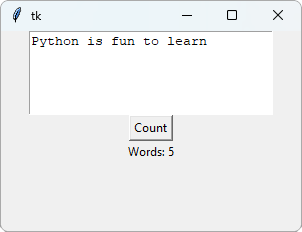
get("1.0", tk.END) gets all the text, from the start to the end.
split() splits the text into words, and len() counts them.
Delete the Text
Use delete() with the same positions to remove all the text:
text_box.delete("1.0", tk.END)







