
Turtle Colors
Pen Color
Use pencolor() to set the color of the lines:
Example
Draw a red line:
import turtle
t = turtle.Turtle()
t.pencolor("red")
t.forward(100)
turtle.done()
Result:

The outline of the turtle also gets the pen color.
Change Colors While Drawing
You can change the pen color as often as you like. The new color is used for the lines drawn after the change:
Example
Draw lines in three colors:
import turtle
t = turtle.Turtle()
t.pencolor("red")
t.forward(100)
t.left(90)
t.pencolor("blue")
t.forward(100)
t.left(90)
t.pencolor("green")
t.forward(100)
turtle.done()
Result:

Color Names
Turtle knows many color names, for example "red", "green", "blue",
"yellow", "orange", "purple", "pink",
"brown", "gray", "black" and "white".
Many of the names in our HTML Color Names list work too, like "lightblue" and "gold".
Hex Colors
You can also use hex color codes, just like in HTML and CSS:
Example
Draw a line in W3Schools green:
import turtle
t = turtle.Turtle()
t.pencolor("#04AA6D")
t.forward(100)
turtle.done()
Result:

A hex color starts with a # sign. Use our Color Picker to find the hex code of any color.
Background Color
Use turtle.bgcolor() to set the background color of the window:
Example
Make the background light blue:
import turtle
turtle.bgcolor("lightblue")
t = turtle.Turtle()
t.forward(100)
turtle.done()
Result:
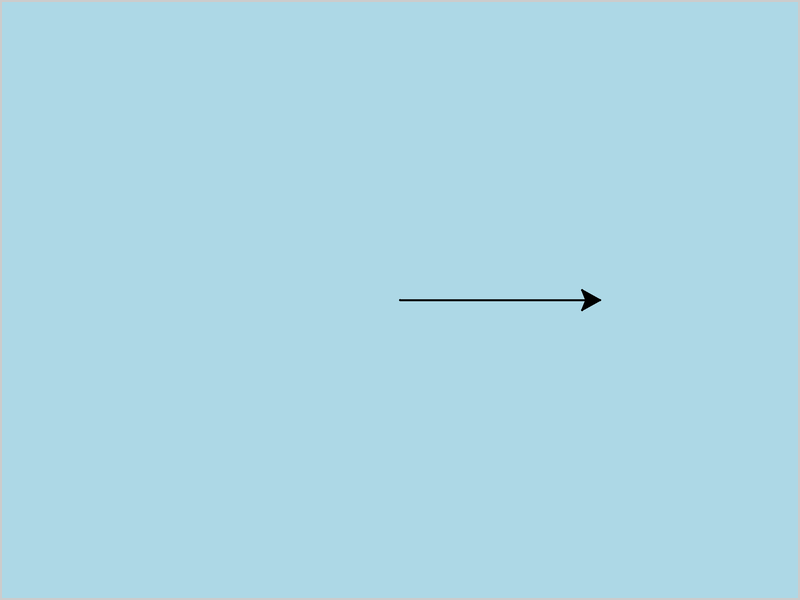
The background color belongs to the window, not to the turtle.
That is why it is written turtle.bgcolor(), and not t.bgcolor().
Note: You may also see the color() method in turtle code.
It sets the pen color and the fill color at the same time.
You will learn about fill color in the Turtle Fill chapter.







