
Power BI DAX Syntax
The Parts of a DAX Formula
Every calculated column, measure and calculated table follows the same pattern: a name, an equal sign, and an expression.
Syntax
Name = expression
Here is a measure you will create later in this chapter:
Example
Units Sold = SUM(Sales[Quantity])
It has these parts:
| Part | Meaning |
|---|---|
| Units Sold | The name of the measure. A name can contain spaces. |
| = | Separates the name from the expression. |
| SUM | A DAX function. SUM adds up all the numbers in a column. |
| ( ) | Parentheses hold the arguments of the function. |
| Sales | The table. |
| [Quantity] | The column, in square brackets. |
You can read the formula like a sentence: "Units Sold is the sum of the Quantity column in the Sales table."
You do not need to type the formulas on this page yet.
You will create each of them in the next chapters.
Referencing Columns and Measures
Columns
A column is written with its table in front of it: the table name, then the column name in square brackets.
Example
Sales[Quantity]
Products[UnitPrice]
'Date'[Year]
Put single quotes around a table name that contains spaces or special characters, for example 'Poke Mart Sales'[Quantity].
Quotes are allowed around any table name, so Sales[Quantity] and 'Sales'[Quantity] mean the same.
In this tutorial, the Date table is always written with quotes, 'Date', because DATE is also the name of a DAX function.
The quotes make it clear that you mean the table.
Measures
A measure is written in square brackets, without a table name:
Example
[Total Sales]
[Order Count]
Measures can use other measures.
This measure subtracts one measure from another:
Example
Profit = [Total Sales] - [Total Cost]
The Naming Convention
DAX lets you leave out the table name in front of a column in some places, and it lets you put a table name in front of a measure.
Microsoft recommends a simple rule instead, and this tutorial follows it:
- Always write the table name in front of a column:
Sales[Quantity] - Never write a table name in front of a measure:
[Total Sales]
With this rule, you can see at a glance what is a column and what is a measure.
Your formulas also keep working if you move a measure to another table.
Names in DAX are not case-sensitive: sales[quantity] and Sales[Quantity] are the same column.
By convention, function names are written in capital letters, like SUM and IF.
DAX Operators
Operators calculate, compare and join values. DAX has four kinds:
| Operator | Meaning | Example |
|---|---|---|
| Arithmetic | ||
| + | Addition | Products[UnitCost] + 10 |
| - | Subtraction | Products[UnitPrice] - Products[UnitCost] |
| * | Multiplication | Products[UnitPrice] * 1.1 |
| / | Division | Products[UnitPrice] / 2 |
| ^ | Exponentiation | 2 ^ 3 |
| Comparison (the result is TRUE or FALSE) | ||
| = | Equal to | Products[Category] = "Balls" |
| == | Strict equal to. Unlike =, it does not treat a blank as 0. | [Order Count] == 0 |
| <> | Not equal to | Stores[Region] <> "Kanto" |
| > | Greater than | Products[UnitPrice] > 500 |
| < | Less than | Sales[Quantity] < 5 |
| >= | Greater than or equal to | Products[UnitPrice] >= 1000 |
| <= | Less than or equal to | Sales[Quantity] <= 10 |
| Text | ||
| & | Joins two text values | Stores[Store] & " (" & Stores[Region] & ")" |
| Logical | ||
| && | And: both conditions must be TRUE | Products[Category] = "Balls" && Products[UnitPrice] > 500 |
| || | Or: at least one condition must be TRUE | Stores[Region] = "Kanto" || Stores[Region] = "Johto" |
| IN | Is one of the values in a list | Stores[Region] IN {"Kanto", "Johto"} |
For the Viridian City store, the text example returns Viridian City (Kanto).
You will use comparisons inside IF and SWITCH later in this chapter.
Order of Calculation
DAX calculates in the same order as Excel: ^ first, then * and /, then + and -.
Use parentheses to change the order:
| Expression | Result |
|---|---|
| 5 + 2 * 3 | 11 |
| (5 + 2) * 3 | 21 |
Note: Excel has a percent operator, so =50% works in a cell.
DAX has no percent operator. Write 0.5 instead.
Comments
A comment is a note in a formula that DAX ignores.
Start a comment with two slashes, //.
DAX ignores everything after them on the same line:
Example
Margin % =
// Profit as a share of sales
DIVIDE([Profit], [Total Sales])
A comment helps you, and others, understand a long formula later.
For a comment over several lines, start it with /* and end it with */.
The Formula Bar
You write DAX in the formula bar.
It appears at the top, just below the ribbon, when you create a new column, measure or table.
A new measure starts with the text Measure = , and a new column with Column = .
Replace the name with your own, and type the expression after the equal sign.
- Press Enter, or select the checkmark, to save the formula.
- Select the X to cancel your changes.
- Press Shift+Enter or Alt+Enter to start a new line in a long formula.
- Select the down arrow at the right end of the formula bar to make it bigger.
If a formula has an error, Power BI shows an error message.
The most common cause is a missing closing parenthesis.
IntelliSense
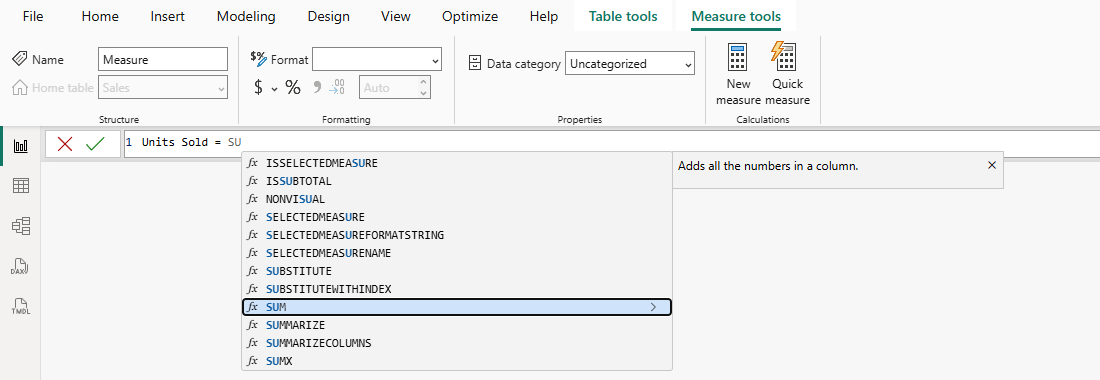
As you type, Power BI shows a list of suggestions: the functions, tables, columns and measures that match what you typed so far.
This feature is called IntelliSense.
- Type the first letters of a function, for example SU.
- The list shows the functions with SU in their names, such as
SUBSTITUTE,SUMandSUMX. SUBSTITUTE is highlighted first. Press the Down arrow key until SUM is highlighted. - To see a short description, select the > button (Read More) at the right end of the highlighted row. For SUM, it says "Adds all the numbers in a column."
- Press Tab or Enter to insert the selected function. Power BI adds the opening parenthesis.
- Type the first letters of a column, for example Quan, and choose Sales[Quantity] from the list.
- Type the closing parenthesis. IntelliSense does not always add it for you.
Do not press Esc to close the list.
While the list is open, Esc cancels the whole formula, not only the list.
In a measure, type an opening square bracket, [, to get a list of the measures only.
IntelliSense also saves you from typos: when you pick a name from the list, it is always spelled right.







