
Power BI Refresh Data
Why Refresh?
With Import, your report holds a copy of the data.
The copy does not change when the source changes.
If the Poke Mart adds new orders to its file tomorrow, your report still shows today's orders.
A refresh reads the source again and replaces the old copy with the new data.
All visuals then show the new numbers.
You can refresh by hand in Power BI Desktop, or let the Power BI service refresh a published report on a schedule.
Refresh in Power BI Desktop
On the Home tab, select Refresh.
Power BI refreshes every table in the report.

The arrow under Refresh opens a menu with three choices: Schema and data, Schema and Data.
The button itself does the same as Schema and data: its tooltip says "Refresh all tables to access the latest schema and data."
For this tutorial, select the button itself.
To refresh one table only, right-click the table in the Data pane and select Refresh data.
Power BI also refreshes the data when you select Close & Apply in the Power Query Editor.
A small window shows the progress while Power BI loads each table.
For the Poke Mart files, it only takes a moment.
Try It: See Refresh at Work
Use the report where you loaded poke_mart_sales.csv on the Excel and CSV page.
If you did not keep it, start a blank report and load the file again with Get data > Text/CSV and Load.
- Click an empty spot on the canvas, select Table in the Visualizations pane, and in the Data pane select Sales under poke_mart_sales. It shows the total of the Sales column: 9,416,800. Use a table here, not a card: a card shortens the number to millions, so a small change would not show.
- Open poke_mart_sales.csv in Notepad: right-click the file, select Open with, and choose Notepad. Do not use Excel, because Excel can change the format of the file when it saves.
- Press Ctrl+End to go to the end of the file. The cursor is now on an empty line below the last order.
- Type this new order, then save the file with Ctrl+S:
3741,2025-12-31,Goldenrod City,Johto,Poke Ball,Balls,10,200,2000,1100
- In Power BI Desktop, select Refresh on the Home tab.
The data now has 2,741 rows, and the table visual shows the new total:
| Sum of Sales | |
|---|---|
| Before the refresh | 9,416,800 |
| After the refresh | 9,418,800 |
The difference is 2,000, the Sales value of the new order: 10 Poke Balls at 200 each.
The table visual shows these totals without a thousands separator, as 9416800 and 9418800. This tutorial writes numbers with a separator to make them easier to read.
Now undo the change: delete the line you added in Notepad, save the file, and select Refresh again.
The table is back at 9,416,800, and your file matches the rest of the tutorial.
What Refresh Re-runs
A refresh is more than reading the file again.
Every query in Power BI is a list of steps, which you will meet in the Power Query chapter.
For the CSV file, the steps are:
- Source: read the file.
- Promoted Headers: use the first line as column names.
- Changed Type: set the data type of each column.
A refresh runs all the steps again, from the top, on the new data.
Every cleaning step you add later, such as removing a column or filtering out test rows, is repeated too.
You clean the data once, and each refresh cleans the new data the same way.
After the queries have run, Power BI loads the results into the model and replaces the old data.
Calculated columns are computed again.
Measures are always calculated when a visual needs them, so they show the new numbers at once.
What Refresh Does Not Fix
The steps expect the source to keep its shape.
A refresh can fail or miss data when:
- The file is moved or renamed. See Moving the File Breaks Refresh.
- A column is renamed or removed in the source. A step that uses the old column name stops with an error saying the column was not found.
- A CSV file gets new columns. Power BI remembers how many columns the file had when you first loaded it, and a refresh does not add the new ones.
When the shape of a source changes, open the Power Query Editor with Transform data and fix the steps.
Scheduled Refresh in the Power BI Service
When you publish a report, Power BI uploads it and its semantic model to the Power BI service.
The service can then refresh the data on a schedule, so nobody has to open Power BI Desktop and select Refresh.
In the Power BI service, you set the schedule on the semantic model:
- Open the workspace and select the semantic model.
- Select Refresh > Schedule refresh.
- In the Refresh section, set Configure a refresh schedule to On.
- Choose how often and at what times to refresh, and select Apply.
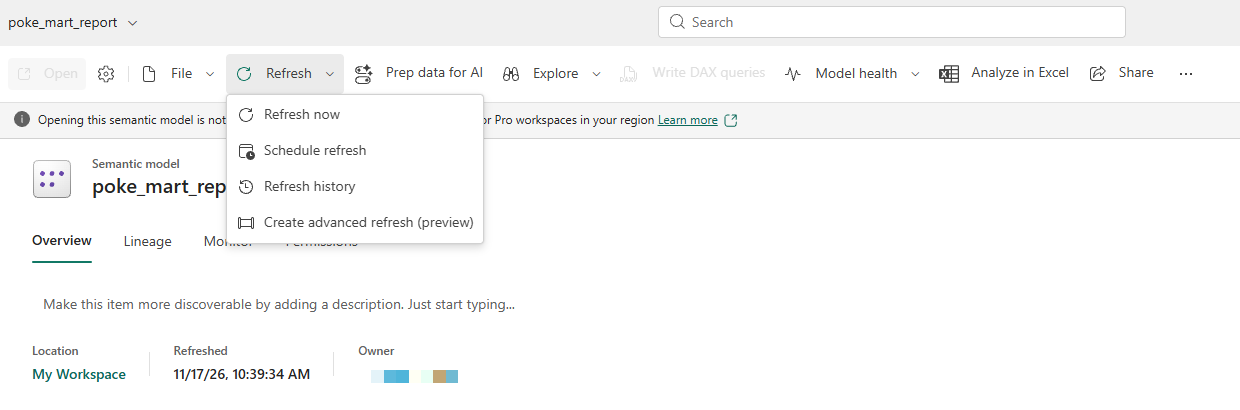
Before the first refresh, the service needs to be able to reach and sign in to your sources.
You set this up in the Data source credentials section of the same settings page.
Some rules to know:
| Rule | Details |
|---|---|
| How often | Up to 8 scheduled refreshes a day with a Power BI Pro license. Up to 48 a day on Premium Per User or on Premium or Fabric capacity. |
| Refresh right away | Select Refresh > Refresh now. Refreshes you start by hand do not count toward the 8 scheduled refreshes. |
| Unused reports | If nobody opens a report or dashboard built on the model for two months, the service pauses the schedule. |
| Failures | After four failed refreshes in a row, the service turns the schedule off. You fix the problem, for example an expired password, and turn it on again. |
| History | Refresh > Refresh history shows when each refresh ran and why a refresh failed. |
To publish a report, see step 5 of the Workflow chapter.
Gateways for On-Premises Data
The Power BI service runs in Microsoft's cloud.
It can reach sources that are in the cloud too, such as an Azure SQL database.
But it cannot reach sources on-premises: a file on your own computer, or a database inside your company's network.
For those sources, you install an on-premises data gateway.
A gateway is a Windows program that runs on a computer inside your network.
When the service wants to refresh, the gateway reads the data from the source and passes it to the service.
The gateway only makes outgoing connections, so your network does not have to be opened to the internet.
| Source | Gateway needed? |
|---|---|
| poke_mart_sales.xlsx in your Documents folder | Yes |
| A SQL Server database in the company network | Yes |
| An Azure SQL database | No |
A gateway can run in one of two modes:
- Standard mode: shared by many people and managed by an administrator, usually on a server that is always on. It also serves DirectQuery and live connections.
- Personal mode: for one person, who uses it to refresh their own Import models.
The computer with the gateway must be on and connected when a refresh runs.
That is why a standard gateway usually runs on a server, not on a laptop.
Note: DirectQuery models have no copy of the data to refresh.
But the service still asks the source for data every time someone views the report, so an on-premises DirectQuery source needs a gateway too.
What You Learned
- With Import, a report shows the data as of the last refresh.
- In Power BI Desktop, Refresh on the Home tab refreshes all tables.
- A refresh runs all the query steps again, so the new data is cleaned the same way.
- Moving a file, renaming a column, or adding CSV columns can break or limit a refresh.
- The Power BI service can refresh a published model on a schedule. On-premises sources need a gateway.
In the next chapter you will use Power Query to clean a messy export, step by step.







