
Power BI Power Query Replace Values and Fill Down
Where You Are
This page continues the cleanup from Split and Merge.
Open pq_cleanup.pbix, the report you saved there, select Home > Transform data, and select the last step of the poke_mart_raw_2024 query, Renamed Columns1.
After the Split and Merge chapter, the query has 8 columns and 1,276 rows.
The first rows look like this:
| 123OrderID | DATEOrderDate | ABCStore | ABCRegion | ABCProduct | 123Quantity | 123UnitPrice | 123Sales |
|---|---|---|---|---|---|---|---|
| 1001 | 1/1/2024 | Lilycove City | Hoenn | Hyper Potion | 1 | 1200 | 1200 |
| 1002 | 1/1/2024 | Cerulean City | Kanto | poke ball | 19 | 200 | 3800 |
| 1003 | 1/2/2024 | Lilycove City | Hoenn | Great Ball | 13 | 600 | 7800 |
| 1004 | 1/2/2024 | Cerulean City | Kanto | Antidote | 9 | 100 | 900 |
| 1005 | 1/3/2024 | Violet City | Johto | Potion | 19 | 300 | 5700 |
| 1006 | 1/3/2024 | Slateport City | Hoenn | Paralyze Heal | 1 | 200 | 200 |
| 1007 | 1/3/2024 | Lilycove City | Hoenn | PARALYZE HEAL | 9 | 200 | 1800 |
| ... | ... | ... | ... | ... | ... | ... | ... |
Two problems are left:
- Region has a typo: some rows say Hoen instead of Hoenn.
- Product is written in many ways:
poke ball,PARALYZE HEAL, and names with extra spaces.
You fix both in this chapter.
You also learn Fill Down, which you need for the targets file in the next chapter.
Find the Typo
Select the filter arrow in the Region column header.
The list shows four values, but the shop has only three regions.
Select Cancel to close the filter list without changing anything.
To see how many rows have each value, select Region with Column profile turned on and profiling based on the entire data set, as in Filter Rows.
These are the counts in the 1,276 rows:
| Region | Rows |
|---|---|
| Hoen | 11 |
| Hoenn | 377 |
| Johto | 462 |
| Kanto | 426 |
The 11 Hoen rows belong to the Hoenn region.
Replace Values
Replace Values replaces one value with another in the selected columns.
- Select the Region column.
- On the Home tab, select Replace Values. The same command is on the Transform tab, and on the right-click menu of the column header.
- In Value To Find, type
Hoen. - In Replace With, type
Hoenn. - Expand Advanced options and select the Match entire cell contents check box.
- Select OK.
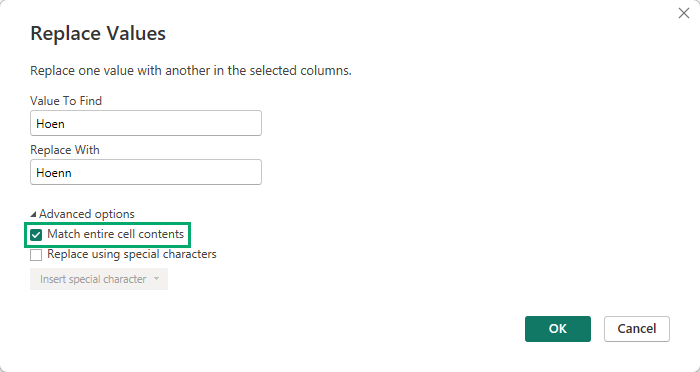
Power Query adds a step called Replaced Value to Applied Steps.
The 11 Hoen cells now say Hoenn, and Region has three values:
| Region | Rows |
|---|---|
| Hoenn | 388 |
| Johto | 462 |
| Kanto | 426 |
The Trap: Match Entire Cell Contents
Why the check box?
In a text column, Replace Values does not compare whole cells by default.
It replaces the text wherever it appears inside a cell.
The word Hoenn contains Hoen.
So without the check box, Power Query also turns every correct Hoenn into Hoennn:
| OrderID | Store | Region before | Without the check box | With the check box |
|---|---|---|---|---|
| 1001 | Lilycove City | Hoenn | Hoennn | Hoenn |
| 1006 | Slateport City | Hoenn | Hoennn | Hoenn |
| 1066 | Lilycove City | Hoen | Hoenn | Hoenn |
| 1078 | Slateport City | Hoen | Hoenn | Hoenn |
In this data, all 377 correct Hoenn cells would become Hoennn.
You would fix a typo in 11 rows and create a new one in 377 rows.
Region would still have four values:
| Region without the check box | Rows |
|---|---|
| Hoenn | 11 |
| Hoennn | 377 |
| Johto | 462 |
| Kanto | 426 |
If you already made this mistake, you do not need to start again.
In Applied Steps, select the gear icon next to Replaced Value.
The Replace Values dialog opens again.
Select Match entire cell contents and select OK.
Note: Excel's Find and Replace dialog has the same trap, and the same fix: an option called Match entire cell contents.
Clean the Product Column
The shop sells 10 products, but the Product column writes them in 40 different ways.
285 of the 1,276 rows have a messy product name:
| Problem | Example | Rows |
|---|---|---|
| All lowercase | poke ball | 125 |
| All UPPERCASE | PARALYZE HEAL | 78 |
| Extra spaces before and after | " Great Ball " | 82 |
Power Query compares text exactly, including uppercase, lowercase and spaces.
For Power Query, poke ball, POKE BALL and Poke Ball are three different values.
Two commands on the Format menu fix all of them:
- Select the Product column.
- On the Transform tab, select Format > Trim. This removes the spaces at the start and end of each value. The new step is called Trimmed Text.
- With Product still selected, select Format > Capitalize Each Word. This makes the first letter of each word uppercase and all other letters lowercase. The new step is called Capitalized Each Word.
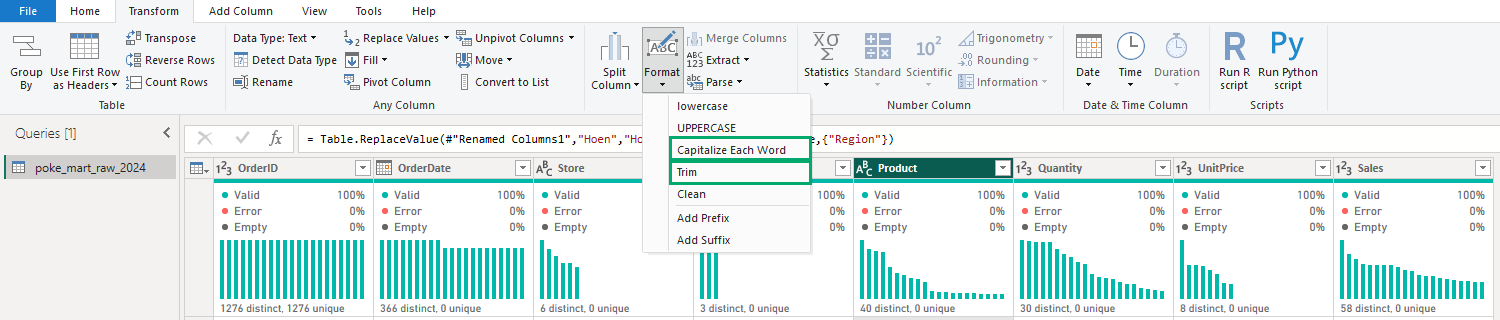
Here are real rows from the file, before and after each step.
The quotes show where the spaces are:
| OrderID | Product in the file | After Trim | After Capitalize Each Word |
|---|---|---|---|
| 1001 | "Hyper Potion" | "Hyper Potion" | "Hyper Potion" |
| 1002 | "poke ball" | "poke ball" | "Poke Ball" |
| 1003 | " Great Ball " | "Great Ball" | "Great Ball" |
| 1007 | "PARALYZE HEAL" | "PARALYZE HEAL" | "Paralyze Heal" |
| 1020 | "antidote" | "antidote" | "Antidote" |
| 1021 | " Poke Ball " | "Poke Ball" | "Poke Ball" |
| 1040 | "HYPER POTION" | "HYPER POTION" | "Hyper Potion" |
After Trim, the column still has 30 different values.
After Capitalize Each Word, only 10 are left: exactly the 10 products the shop sells.
Note: Trim in Power Query removes spaces only at the start and the end of the text.
The Excel TRIM function also removes double spaces between words.
Fill Down
In the next chapter you load a second file, poke_mart_targets_2025.xlsx, with the sales targets for 2025. Its Region column is filled in only for the first store of each region, the way people often type a report by hand.
In Power Query it looks like this:
| ABCRegion | ABCStore | 123Jan | 123Feb | 123Mar | ... |
|---|---|---|---|---|---|
| Kanto | Viridian City | 51000 | 65000 | 75000 | ... |
| null | Cerulean City | 52000 | 50000 | 72000 | ... |
| Johto | Goldenrod City | 104000 | 55000 | 104000 | ... |
| null | Violet City | 25000 | 34000 | 41000 | ... |
| Hoenn | Slateport City | 59000 | 54000 | 77000 | ... |
| null | Lilycove City | 53000 | 55000 | 31000 | ... |
Power Query shows the empty cells as null, which means "no value".
A person can see that Cerulean City belongs to Kanto. Power BI cannot.
A chart of targets by region would put Cerulean City, Violet City and Lilycove City in a group with no region at all.
Fill Down copies each value down into the null cells below it, until it reaches the next value:
- Select the Region column.
- On the Transform tab, select Fill > Down. You can also right-click the column header and select Fill > Down.
The filled cells are marked in green:
| ABCRegion | ABCStore | 123Jan | 123Feb | 123Mar | ... |
|---|---|---|---|---|---|
| Kanto | Viridian City | 51000 | 65000 | 75000 | ... |
| Kanto | Cerulean City | 52000 | 50000 | 72000 | ... |
| Johto | Goldenrod City | 104000 | 55000 | 104000 | ... |
| Johto | Violet City | 25000 | 34000 | 41000 | ... |
| Hoenn | Slateport City | 59000 | 54000 | 77000 | ... |
| Hoenn | Lilycove City | 53000 | 55000 | 31000 | ... |
There is also Fill > Up, which copies values upward into the null cells above them.
Note: Fill Down fills only null cells.
A cell that holds empty text is not null, so it is not filled.
If your column has empty text, first use Replace Values with an empty Value To Find and null in Replace With.
You will use Fill Down on the real targets file in the next chapter.
Check Your Work
The poke_mart_raw_2024 query still has 8 columns and 1,276 rows.
Applied Steps has three new steps: Replaced Value, Trimmed Text and Capitalized Each Word.
The first rows now look like this:
| 123OrderID | DATEOrderDate | ABCStore | ABCRegion | ABCProduct | 123Quantity | 123UnitPrice | 123Sales |
|---|---|---|---|---|---|---|---|
| 1001 | 1/1/2024 | Lilycove City | Hoenn | Hyper Potion | 1 | 1200 | 1200 |
| 1002 | 1/1/2024 | Cerulean City | Kanto | Poke Ball | 19 | 200 | 3800 |
| 1003 | 1/2/2024 | Lilycove City | Hoenn | Great Ball | 13 | 600 | 7800 |
| 1004 | 1/2/2024 | Cerulean City | Kanto | Antidote | 9 | 100 | 900 |
| 1005 | 1/3/2024 | Violet City | Johto | Potion | 19 | 300 | 5700 |
| 1006 | 1/3/2024 | Slateport City | Hoenn | Paralyze Heal | 1 | 200 | 200 |
| 1007 | 1/3/2024 | Lilycove City | Hoenn | Paralyze Heal | 9 | 200 | 1800 |
| ... | ... | ... | ... | ... | ... | ... | ... |
Region now has 3 values and Product has 10. Good job! The 2024 data is clean.
Select Close & Apply, then File > Save to save pq_cleanup.pbix.
The next page continues from here.







