
Power BI Power Query Split and Merge Columns
One Column, Two Facts
The Location column holds two things at once: the store and the region, for example Lilycove City - Hoenn.
That makes it hard to use.
You cannot add a slicer for the region, or compare the two stores in Hoenn, while both facts share one column.
The rule is simple: one fact per column.
In this chapter you split Location into Store and Region.
Then you see the opposite, Merge Columns.
This page continues the cleanup from Power Query Filter Rows.
Open pq_cleanup.pbix, the report you saved there, select Home > Transform data, and select the last step of the poke_mart_raw_2024 query, Removed Duplicates.
The query has 1,276 rows:
| 123OrderID | DATEOrderDate | ABCLocation | ABCProduct | 123Quantity | 123UnitPrice | 123Sales |
|---|---|---|---|---|---|---|
| 1001 | 1/1/2024 | Lilycove City - Hoenn | Hyper Potion | 1 | 1200 | 1200 |
| 1002 | 1/1/2024 | Cerulean City - Kanto | poke ball | 19 | 200 | 3800 |
| 1003 | 1/2/2024 | Lilycove City - Hoenn | Great Ball | 13 | 600 | 7800 |
| 1004 | 1/2/2024 | Cerulean City - Kanto | Antidote | 9 | 100 | 900 |
| 1005 | 1/3/2024 | Violet City - Johto | Potion | 19 | 300 | 5700 |
| 1006 | 1/3/2024 | Slateport City - Hoenn | Paralyze Heal | 1 | 200 | 200 |
| ... | ... | ... | ... | ... | ... | ... |
Split Column by Delimiter
A delimiter is the text that separates the parts of a value.
In Location, the store and the region are separated by a space, a hyphen and another space: - .
- Select the Location column.
- On the Home tab, select Split Column > By Delimiter.
- The Split Column by Delimiter dialog opens. Power Query has already chosen Space as the delimiter. Under Select or enter delimiter, choose --Custom-- instead.
- In the box below it, type a space, a hyphen and a space:
-. - Under Split at, keep Each occurrence of the delimiter, which is already selected.
- Select OK.
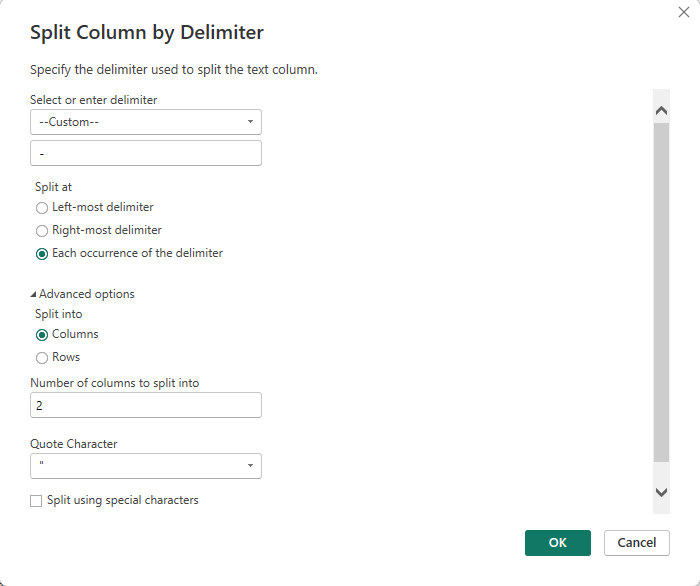
You also find Split Column on the Transform tab and in the menu when you right-click the column header.
Location is replaced by two new columns, Location.1 and Location.2, in the same place:
| 123OrderID | DATEOrderDate | ABCLocation.1 | ABCLocation.2 | ABCProduct | 123Quantity | 123UnitPrice | 123Sales |
|---|---|---|---|---|---|---|---|
| 1001 | 1/1/2024 | Lilycove City | Hoenn | Hyper Potion | 1 | 1200 | 1200 |
| 1002 | 1/1/2024 | Cerulean City | Kanto | poke ball | 19 | 200 | 3800 |
| 1003 | 1/2/2024 | Lilycove City | Hoenn | Great Ball | 13 | 600 | 7800 |
| 1004 | 1/2/2024 | Cerulean City | Kanto | Antidote | 9 | 100 | 900 |
| 1005 | 1/3/2024 | Violet City | Johto | Potion | 19 | 300 | 5700 |
| 1006 | 1/3/2024 | Slateport City | Hoenn | Paralyze Heal | 1 | 200 | 200 |
| ... | ... | ... | ... | ... | ... | ... | ... |
Power Query names the new columns after the old one, with a dot and a number.
Look at Applied Steps: there are two new steps.
Split Column by Delimiter does the split, and Changed Type2 sets the type of the new columns to Text.
The split step has a formula similar to this:
= Table.SplitColumn(#"Removed Duplicates", "Location", Splitter.SplitTextByDelimiter(" - ", QuoteStyle.Csv), {"Location.1", "Location.2"})
Note: Include the spaces in the delimiter.
If you split at the hyphen alone, the store becomes "Lilycove City " with a space at the end, and the region becomes " Hoenn" with a space at the start.
You can hardly see those spaces in the preview, but " Hoenn" and "Hoenn" are different values.
A region from this query would then not match the same region in another table.
Split At: The Three Options
The Split at options matter when a value contains the delimiter more than once.
Suppose a value had two delimiters, like Poke Mart - Lilycove City - Hoenn:
| Split at | Result |
|---|---|
| Left-most delimiter | 2 columns: Poke Mart | Lilycove City - Hoenn |
| Right-most delimiter | 2 columns: Poke Mart - Lilycove City | Hoenn |
| Each occurrence of the delimiter | 3 columns: Poke Mart | Lilycove City | Hoenn |
Every Location value in the Poke Mart file has exactly one delimiter, so all three options give the same two columns here.
Under Advanced options you can split into Rows instead of columns, and see the Number of columns to split into.
Power Query fills in that number from the data it sees, here 2. The number is saved in the step.
If a later file had a value with more parts, the extra parts would be ignored.
Rename the New Columns
- Double-click the Location.1 header, type Store and press Enter.
- Double-click the Location.2 header, type Region and press Enter.
Power Query adds a step called Renamed Columns1.
It gets the number 1 because the query already has a step called Renamed Columns.
| 123OrderID | DATEOrderDate | ABCStore | ABCRegion | ABCProduct | 123Quantity | 123UnitPrice | 123Sales |
|---|---|---|---|---|---|---|---|
| 1001 | 1/1/2024 | Lilycove City | Hoenn | Hyper Potion | 1 | 1200 | 1200 |
| 1002 | 1/1/2024 | Cerulean City | Kanto | poke ball | 19 | 200 | 3800 |
| 1003 | 1/2/2024 | Lilycove City | Hoenn | Great Ball | 13 | 600 | 7800 |
| 1004 | 1/2/2024 | Cerulean City | Kanto | Antidote | 9 | 100 | 900 |
| 1005 | 1/3/2024 | Violet City | Johto | Potion | 19 | 300 | 5700 |
| 1006 | 1/3/2024 | Slateport City | Hoenn | Paralyze Heal | 1 | 200 | 200 |
| 1007 | 1/3/2024 | Lilycove City | Hoenn | PARALYZE HEAL | 9 | 200 | 1800 |
| 1008 | 1/4/2024 | Goldenrod City | Johto | Super Potion | 6 | 700 | 4200 |
| ... | ... | ... | ... | ... | ... | ... | ... |
Open the filter list of Region.
There are four values, not three: Hoenn, Johto, Kanto and Hoen.
Hoen is a typo in 11 rows.
Now that the region has its own column, the typo is easy to see.
You fix it in the next chapter.
Merge Columns
Merge Columns is the opposite of a split.
It joins two or more text columns into one, with a separator between the values.
Try it by turning Store and Region back into one Location column:
- Select the Store header, hold Ctrl, and select the Region header. The order matters: the column you select first comes first.
- On the Transform tab, select Merge Columns.
- The Merge Columns dialog opens with Separator set to --None--. Choose --Custom--, and in the box below it type a space, a hyphen and a space:
-. - In New column name (optional), replace Merged with Location.
- Select OK.
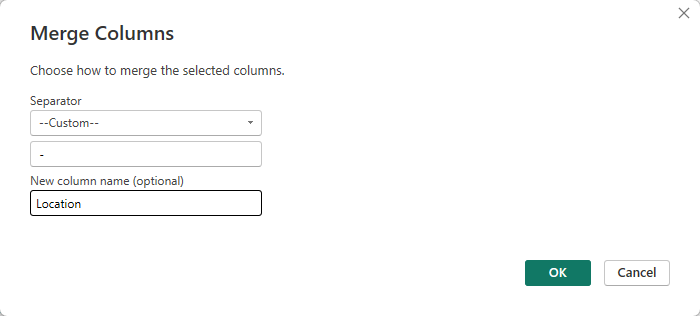
Store and Region are replaced by one text column, Location, and a step called Merged Columns is added.
The values are the same as in the original file:
| Store | Region | Location (merged) |
|---|---|---|
| Lilycove City | Hoenn | Lilycove City - Hoenn |
| Cerulean City | Kanto | Cerulean City - Kanto |
| Violet City | Johto | Violet City - Johto |
Merge Columns is on two tabs, and they do different things:
- Transform > Merge Columns replaces the selected columns with the merged column.
- Add Column > Merge Columns keeps the selected columns and adds the merged column as a new one.
You can only merge text columns.
In Excel, the CONCAT function does a similar job with a formula.
Delete the Merge Step
This was only a demo.
The report needs Store and Region as separate columns.
In Applied Steps, select the X next to Merged Columns.
Store and Region are back, and the last step is Renamed Columns1 again.
Where You Are Now
The query has 1,276 rows and eight columns:
| Column | Type |
|---|---|
| OrderID | Whole Number |
| OrderDate | Date |
| Store | Text |
| Region | Text |
| Product | Text |
| Quantity | Whole Number |
| UnitPrice | Whole Number |
| Sales | Whole Number |
These are the Applied Steps so far:
- Source
- Promoted Headers
- Changed Type
- Removed Columns
- Renamed Columns
- Added Custom
- Changed Type1
- Filtered Rows
- Removed Duplicates
- Split Column by Delimiter
- Changed Type2
- Renamed Columns1
Two problems are left in this query: the typo Hoen in Region, and the product names that are written in different ways.
You fix both in the next chapter, Replace and Fill.
Select Close & Apply, then File > Save to save pq_cleanup.pbix.







