
Power BI Power Query Data Types
Data Types
Every column in Power Query has one data type, such as text, whole number or date.
The type decides what Power BI can do with the column.
Power BI can add up a number column, build a Year, Quarter and Month hierarchy from a date column, and sort each type the right way.
A number stored as text cannot be added up, and a date stored as text sorts like a word.
For files such as CSV, Microsoft recommends that you always make sure each column has a type, and that no column of your finished query is left with the type Any.
In this chapter you check the types of the Poke Mart query and fix the one that is missing.
This page continues the cleanup from Power Query Columns.
Open pq_cleanup.pbix, the report you saved there, select Home > Transform data, and select the last step of the poke_mart_raw_2024 query, Added Custom.
The Type Icons
The type of a column is shown as an icon on the left side of its header.
These are the types you meet most often:
| Icon | Data type | Holds | Poke Mart example |
|---|---|---|---|
| ABC | Text | Letters, words, codes | Location, Product |
| 123 | Whole Number | Numbers without decimals | OrderID, Quantity, UnitPrice |
| 1.2 | Decimal Number | Numbers with or without decimals | None yet |
| $ | Fixed decimal number | Money amounts, with up to four decimals. Also called Currency | None yet |
| DATE | Date | A date without a time. The icon is a small calendar | OrderDate |
| Calendar and clock | Date/Time | A date and a time | None |
| ABC123 | Any | No type has been set yet | Sales, for now |
There are a few more, such as Time, Duration, Percentage and True/False.
The Changed Type Step
You did not set any types when you loaded the file, but most columns already have one.
The automatic Changed Type step did that.
For files such as CSV and Excel, Power Query looks at the values in the first 200 rows of each column and picks a type that fits. Check what it chose:
| Column | Detected type | Correct? |
|---|---|---|
| OrderID | 123Whole Number | Yes |
| OrderDate | DATEDate | Yes |
| Location | ABCText | Yes |
| Product | ABCText | Yes |
| Quantity | 123Whole Number | Yes |
| UnitPrice | 123Whole Number | Yes |
| Sales | ABC123Any | No, it was added after the Changed Type step |
Check the Date Column
Dates deserve a second look.
OrderDate should have the calendar icon of the Date type:
- If it shows ABC, the dates are text. Power BI cannot build a date hierarchy from them.
- If it shows a calendar with a clock, the type is Date/Time, and every date gets a time of midnight that you do not need.
In the Poke Mart file, the dates are written as year-month-day, for example 2024-01-01. Power Query reads this format the same way on every computer, so OrderDate is detected as Date.
Note: Power Query only looks at the first 200 rows.
If row 900 held a value that does not fit the detected type, that cell would become an error.
If you chose Do not detect data types in the preview window, every column starts as text, and you set the types yourself.
How to Change a Data Type
Select a column, then use any of these:
- Select the type icon on the left side of the column header.
- Right-click the header and select Change Type.
- On the Home tab, use the Data Type dropdown.
- On the Transform tab, use the Data Type dropdown.
Transform > Detect Data Type asks Power Query to guess the type of the selected columns again.
Every type change is recorded as a step.
Before you fix Sales, see what happens when a type change goes wrong.
When a Type Change Fails
Try to turn Product into a number:
- Select the Product column.
- Select the ABC icon in its header.
- Select Whole Number.
Power Query adds a step called Changed Type1, and every cell in Product now says Error:
| 123OrderID | DATEOrderDate | ABCLocation | 123Product | 123Quantity | 123UnitPrice | ABC123Sales |
|---|---|---|---|---|---|---|
| 1001 | 1/1/2024 | Lilycove City - Hoenn | Error | 1 | 1200 | 1200 |
| 1002 | 1/1/2024 | Cerulean City - Kanto | Error | 19 | 200 | 3800 |
| 1003 | 1/2/2024 | Lilycove City - Hoenn | Error | 13 | 600 | 7800 |
| 1004 | 1/2/2024 | Cerulean City - Kanto | Error | 9 | 100 | 900 |
| 1005 | 1/3/2024 | Violet City - Johto | Error | 19 | 300 | 5700 |
| ... | ... | ... | ... | ... | ... | ... |
"Hyper Potion" is not a number, so Power Query cannot convert it.
Instead of stopping, it puts an Error value in the cell and goes on with the next row.
To see why a cell failed, click the white space next to the word Error, in the first cell of Product.
A pane opens below the preview with a message similar to this:
DataFormat.Error: We couldn't convert to Number.
Details:
Hyper Potion
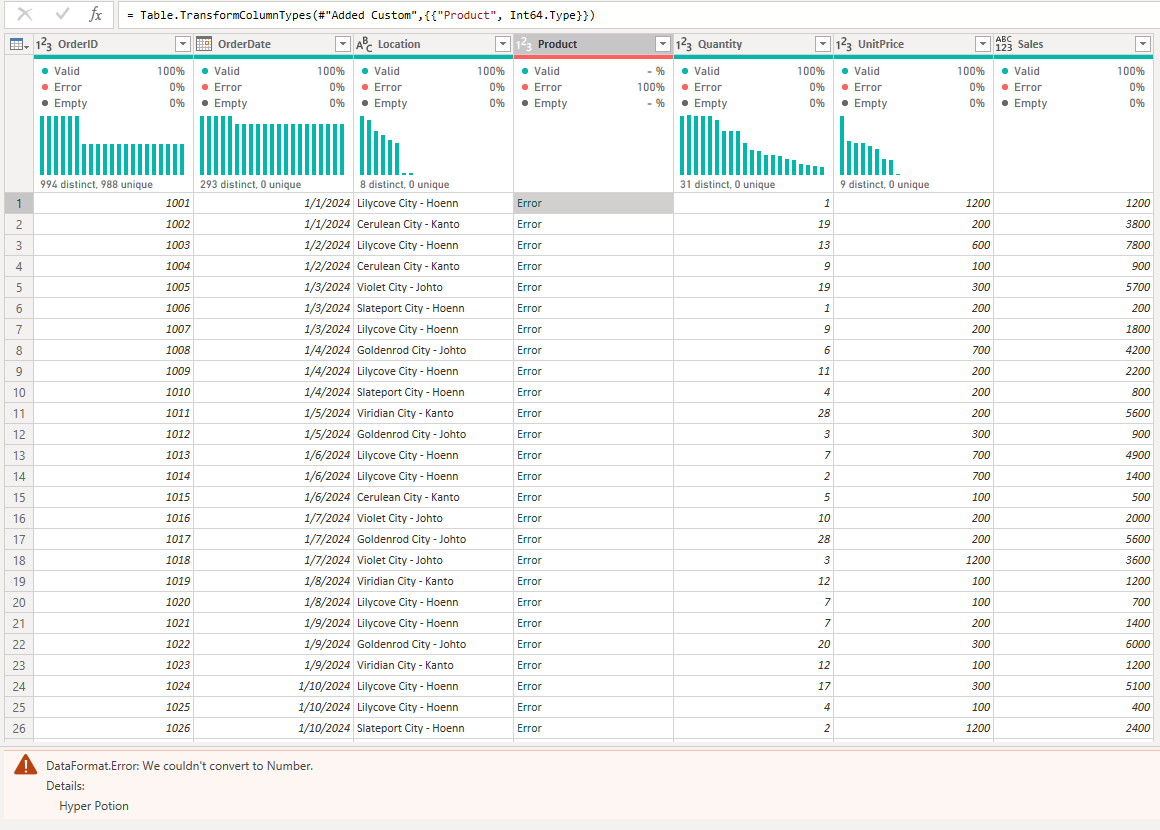
If Column quality is turned on (on the View tab), it shows 100% Error for Product.
Replace or Remove Errors
In real data, often only a few cells fail, for example one "N/A" in a column of numbers.
Power Query has three commands for that. Select the column first:
| Command | Where | What it does |
|---|---|---|
| Replace Errors | Transform > the arrow next to Replace Values | Puts a value that you type, such as 0, in every error cell |
| Remove Errors | Home > Remove Rows | Removes every row that has an error in the selected columns |
| Keep Errors | Home > Keep Rows | Keeps only the rows with an error, so you can look at them |
Note: Think before you use Remove Errors.
Here every Product cell is an error, so Remove Errors would delete all 1,285 rows.
The problem is not the data but the step, so the right fix is to delete the step.
Delete the Step
In Applied Steps, point to Changed Type1 and select the X next to it.
The step is gone, and Product is text again.
The last step is Added Custom again.
You can always undo a change this way.
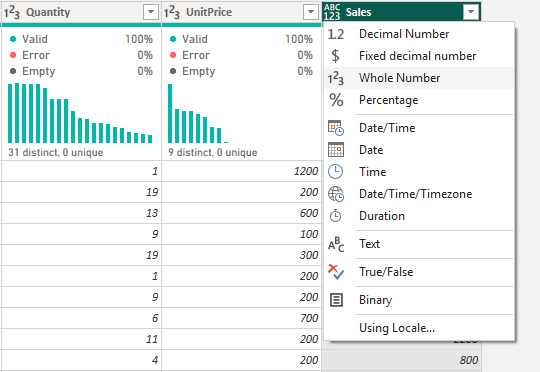
Set Sales to Whole Number
Now the real fix.
Sales has the type Any, because in Power BI Desktop a custom column gets no type.
Quantity and UnitPrice are both whole numbers, so their product is always a whole number too.
- Select the Sales column.
- Select the ABC123 icon in its header.
- Select Whole Number.
Power Query adds a new step, Changed Type1, and the icon of Sales changes to 123:
| 123OrderID | DATEOrderDate | ABCLocation | ABCProduct | 123Quantity | 123UnitPrice | 123Sales |
|---|---|---|---|---|---|---|
| 1001 | 1/1/2024 | Lilycove City - Hoenn | Hyper Potion | 1 | 1200 | 1200 |
| 1002 | 1/1/2024 | Cerulean City - Kanto | poke ball | 19 | 200 | 3800 |
| 1003 | 1/2/2024 | Lilycove City - Hoenn | Great Ball | 13 | 600 | 7800 |
| 1004 | 1/2/2024 | Cerulean City - Kanto | Antidote | 9 | 100 | 900 |
| 1005 | 1/3/2024 | Violet City - Johto | Potion | 19 | 300 | 5700 |
| 1006 | 1/3/2024 | Slateport City - Hoenn | Paralyze Heal | 1 | 200 | 200 |
| ... | ... | ... | ... | ... | ... | ... |
The formula bar shows something similar to this:
= Table.TransformColumnTypes(#"Added Custom",{{"Sales", Int64.Type}})
It is the same function as in the automatic Changed Type step.
Int64.Type is the M name of Whole Number.
If you change the type of a column that the last step has just converted, Power Query asks whether to replace the current conversion step or add a new step.
Replacing the current step keeps the list of steps short.
Using Locale
The same text can mean two different dates.
04/05/2024 is April 5 in the United States, but 4 May in the United Kingdom.
Power Query reads dates and numbers with the regional format of your computer.
When a file comes from another country, that can give wrong dates or errors.
The fix is to tell Power Query which locale the file uses:
- Right-click the column header.
- Select Change Type > Using Locale....
- Choose the data type, for example Date.
- Choose the locale of the file, for example English (United Kingdom).
- Select OK.
Locale matters for numbers too: in many countries, 1.200 means one thousand two hundred, and a comma is the decimal separator.
To change the locale for the whole file, select File > Options and settings > Options, and under CURRENT FILE select Regional Settings.
The Poke Mart dates are written year-month-day, so you do not need a locale for them.
Where You Are Now
All seven columns now have the right type:
| Column | Type |
|---|---|
| OrderID | Whole Number |
| OrderDate | Date |
| Location | Text |
| Product | Text |
| Quantity | Whole Number |
| UnitPrice | Whole Number |
| Sales | Whole Number |
The query still has 1,285 rows.
Its Applied Steps are: Source, Promoted Headers, Changed Type, Removed Columns, Renamed Columns, Added Custom and Changed Type1.
Select Close & Apply, then File > Save to save pq_cleanup.pbix.
In the next chapter you remove the rows that should not be there.







