
Power BI Power Query Append Queries
A Second Year of Sales
So far you have cleaned the 2024 sales.
The shop also exported its 2025 sales, in a file with the same columns and the same problems:
Download poke_mart_raw_2025.csv
You do not have to repeat the cleaning by hand.
The steps of a query are like a recipe, and you can use the same recipe on a new file.
This page continues the cleanup from Unpivot.
Open pq_cleanup.pbix, the report you saved there, and select Home > Transform data.
The Queries pane shows two queries: poke_mart_raw_2024 and Targets.
In this chapter you will:
- Duplicate the 2024 query and point the copy to the 2025 file.
- Append the two years into one query called Sales.
- Stop the two year queries from loading into the report.
Duplicate the Query
- In the Queries pane, right-click poke_mart_raw_2024 and select Duplicate. A copy called poke_mart_raw_2024 (2) appears, with all the same steps.
- Right-click the copy, select Rename, type
poke_mart_raw_2025, and press Enter. You can also change the name in the Name box under Properties in the Query Settings pane.
Duplicate copies a query with all its steps.
The copy is independent: changing it does not change the original.
Reference, on the same right-click menu, creates a new query that starts from the result of another query.
Here you need Duplicate, because you want to change the very first step.
Change the Source Step
The first step, Source, says which file the query reads.
Point it to the 2025 file:
- Select the poke_mart_raw_2025 query.
- In Applied Steps, select the gear icon next to Source. A dialog called Comma-Separated Values opens with the settings of the step.
- Next to File path, select Browse..., find poke_mart_raw_2025.csv, and select Open.
- Select OK.
- In Applied Steps, select the last step, Capitalized Each Word, to see the final result.
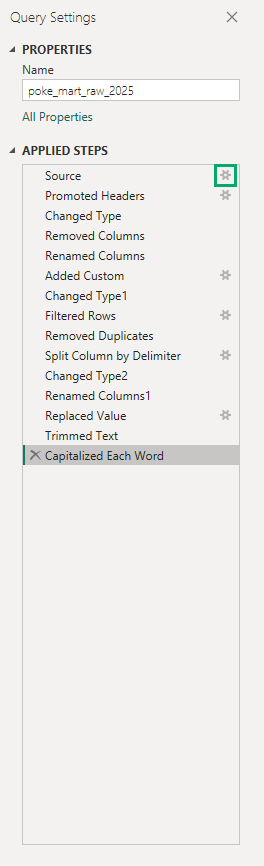
Every cleaning step now runs on the 2025 file.
This is how the number of rows changes, step by step:
| After the step | 2024 | 2025 |
|---|---|---|
| Changed Type (all rows of the file) | 1,285 | 1,476 |
| Filtered Rows (TEST ITEM rows removed) | 1,282 | 1,473 |
| Removed Duplicates | 1,276 | 1,464 |
The other steps change values, not the number of rows.
In the 2025 data, Replaced Value fixes 18 Hoen typos, and Trimmed Text and Capitalized Each Word fix 307 messy product names.
The first rows of the 2025 query.
The cells that the steps changed are marked in green (order 2277 said Hoen, order 2278 said great ball):
| 123OrderID | DATEOrderDate | ABCStore | ABCRegion | ABCProduct | 123Quantity | 123UnitPrice | 123Sales |
|---|---|---|---|---|---|---|---|
| 2277 | 1/1/2025 | Slateport City | Hoenn | Antidote | 12 | 100 | 1200 |
| 2278 | 1/1/2025 | Goldenrod City | Johto | Great Ball | 2 | 600 | 1200 |
| 2279 | 1/1/2025 | Violet City | Johto | Great Ball | 8 | 600 | 4800 |
| 2280 | 1/2/2025 | Slateport City | Hoenn | Antidote | 11 | 100 | 1100 |
| 2281 | 1/2/2025 | Viridian City | Kanto | Potion | 12 | 300 | 3600 |
| 2282 | 1/2/2025 | Goldenrod City | Johto | Great Ball | 9 | 600 | 5400 |
| ... | ... | ... | ... | ... | ... | ... | ... |
This works because the steps refer to columns by their names.
Any file with the same column names gets the same treatment.
If a new file renamed a column, the steps that use that column would show an error.
Note: You can also change the file in the formula bar: select the Source step and change poke_mart_raw_2024.csv to poke_mart_raw_2025.csv in the file path.
You learn more about the formula bar in Applied Steps and M.
Append Queries as New
Appending puts the rows of one table under the rows of another.
Both year queries have the same 8 columns, so the result has 8 columns and 1,276 + 1,464 = 2,740 rows.
- Select the poke_mart_raw_2024 query.
- On the Home tab, in the Combine group, select the arrow next to Append Queries, and then select Append Queries as New.
- Keep Two tables selected. Set First table to poke_mart_raw_2024 and Second table to poke_mart_raw_2025.
- Select OK.
- A new query called Append1 appears. Rename it to
Sales.
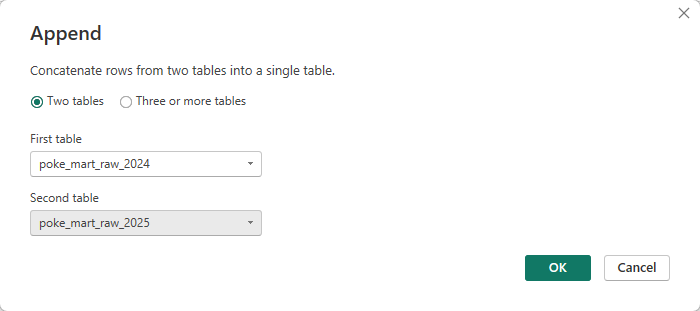
The Sales query has 2,740 rows.
This is where the two years meet:
| 123OrderID | DATEOrderDate | ABCStore | ABCRegion | ABCProduct | 123Quantity | 123UnitPrice | 123Sales |
|---|---|---|---|---|---|---|---|
| ... | ... | ... | ... | ... | ... | ... | ... |
| 2274 | 12/31/2024 | Slateport City | Hoenn | Revive | 5 | 1500 | 7500 |
| 2275 | 12/31/2024 | Lilycove City | Hoenn | Paralyze Heal | 10 | 200 | 2000 |
| 2276 | 12/31/2024 | Goldenrod City | Johto | Great Ball | 4 | 600 | 2400 |
| 2277 | 1/1/2025 | Slateport City | Hoenn | Antidote | 12 | 100 | 1200 |
| 2278 | 1/1/2025 | Goldenrod City | Johto | Great Ball | 2 | 600 | 1200 |
| 2279 | 1/1/2025 | Violet City | Johto | Great Ball | 8 | 600 | 4800 |
| ... | ... | ... | ... | ... | ... | ... | ... |
Append Queries, without "as New", would add the 2025 rows to the poke_mart_raw_2024 query itself.
Append Queries as New leaves both year queries unchanged and creates a new query, which keeps each query simple.
Note: Append matches columns by name, not by position.
If a column exists in only one of the tables, the rows from the other table get null in that column.
Turn Off Enable Load
By default, every query is loaded into the report as a table.
If all three queries were loaded, the report would hold every order twice: once in Sales and once in a year table.
The two year queries are only helpers.
Sales needs them, but the report does not:
- In the Queries pane, right-click poke_mart_raw_2024 and select Enable load, so its check mark disappears.
- Power BI shows a Possible Data Loss Warning: disabling load will remove the table from the report. Select Continue.
- Do the same for poke_mart_raw_2025. This time there is no warning.
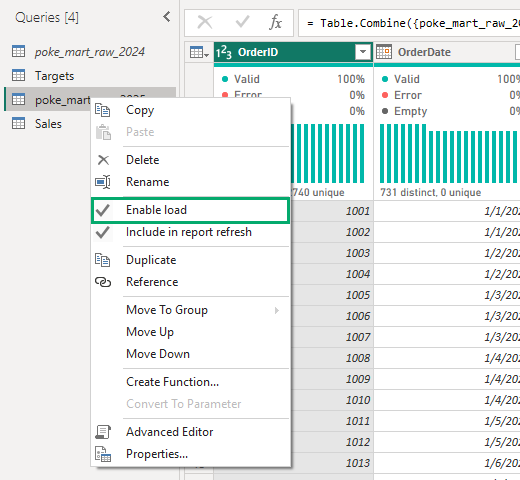
The two query names are now shown in italics.
The queries still work and Sales still uses them, but they will not appear as tables in the report.
The warning for poke_mart_raw_2024 came because you loaded it into the report with Close & Apply in Power Query Editor.
Only that loaded copy is removed, not the query.
Select Close & Apply, then File > Save to save pq_cleanup.pbix.
The next page continues from here.
The Scalable Way: Combine Files from a Folder
Duplicating a query works well for two files.
If a new file arrives every month, there is a better way.
Put all the files in one folder, then select Get data > More... > Folder, browse to the folder, and select Combine & Transform Data.
Power Query uses one file as an example, applies the same steps to every file in the folder, and appends the results into one table.
It also adds some helper queries in a group of their own.
When next month's file is saved in the folder, a refresh picks it up, with no new query needed.







