
Power BI Import vs DirectQuery
What Is a Storage Mode?
When Power BI connects to a source, it has two ways to work with the data:
- Import: copy the data into the report.
- DirectQuery: leave the data in the source, and ask the source for it each time a visual needs it.
This choice is called the storage mode of a table.
You make the choice when you connect.
Sources that support both modes, such as SQL Server, show a Data Connectivity mode option in their connection dialog, as you saw on the previous page.
Files such as Excel workbooks and CSV files, and web pages, support Import only.
That is why Power BI did not ask when you loaded them.
Import
With Import, Power BI reads all the rows you selected and stores a copy of them in the report.
- The copy is kept in Power BI's fast in-memory engine, so visuals react almost at once.
- The copy is saved in the
.pbixfile. You can open the report without a connection to the source. - The copy does not change by itself. To get new data from the source, you refresh it.
Import is a snapshot: the report shows the data as it was at the last refresh.
DirectQuery
With DirectQuery, Power BI does not copy any rows.
It stores only the tables and their columns.
- Every time a visual needs data, Power BI turns the request into a query in the language of the source, for example SQL, and sends it to the database.
- When you open a page, change a slicer, or select Refresh, the visuals ask the source again and show the latest data.
- How fast the report feels depends on how fast the database answers.
DirectQuery is live, or close to it: the report shows the data as it is in the source right now.
Import vs DirectQuery Compared
| Import | DirectQuery | |
|---|---|---|
| Where the data is | A copy in the report | Only in the source |
| Speed | Fast: visuals read from the in-memory copy | Depends on the source: every click sends queries to it |
| Freshness | As of the last refresh | Current: visuals ask the source again when they update |
| Size | Limited by memory. With a Power BI Pro license, a published model can be up to 1 GB. | The data stays in the source, so the model stays small. But a single query can return at most 1,000,000 rows. |
| Power Query | Every transformation works | Only steps that the source can run as one query. Complex steps cause errors. |
| DAX | Everything works | Some limits. For example, a calculated column can only use columns from its own table. |
| Date hierarchy | Created automatically for date columns | Not created. You need your own date table. |
| Table view | Shows the rows | Cannot show the rows |
| Sources | Almost all | Only some, mostly databases |
When to Pick Which
Use Import in most cases. Microsoft recommends it as the default, because it is fast and every feature of Power BI works with it. Pick Import when:
- The data fits comfortably in memory.
- It is enough to see new data a few times a day, after each refresh.
- The data comes from files or web pages, which support Import only.
Use DirectQuery only when you have a reason to. Pick DirectQuery when:
- The data changes all the time, and people must see the changes within minutes.
- The data is too big to copy into a report.
- The database has its own security rules about who can see which rows, and they must apply to the report too.
- Company rules say the data must not be copied out of the database.
With DirectQuery, test the report early.
If every visual takes many seconds to appear, the database may be too slow for it.
There is also a third mode, Dual.
A Dual table answers from an imported copy when it can, and asks the source when it must.
It is used in advanced models that mix the two modes.
Live Connection
A live connection connects your report to a semantic model that already exists: one that someone has published to the Power BI service, or an Analysis Services model.
To use one, select Get data > Power BI semantic models.
Like DirectQuery, no data is copied into your report.
But there is no Power Query either: you see the tables, columns and measures of the existing model, and the model's owner decides what is in it.
You can add your own measures, which are saved in your report, but you cannot change the model itself, for example by adding calculated tables.
Live connections are common in companies where one team builds a central model and many people build reports on top of it.
See the Storage Mode of a Table
Each table has a Storage mode property. To see it:
- Open poke_mart_report.pbix, the report you saved in the First Report chapter.
- Select Model view on the left side of the window.
- Select a table, for example Sales.
- In the Properties pane, expand Advanced.
- Look at Storage mode.
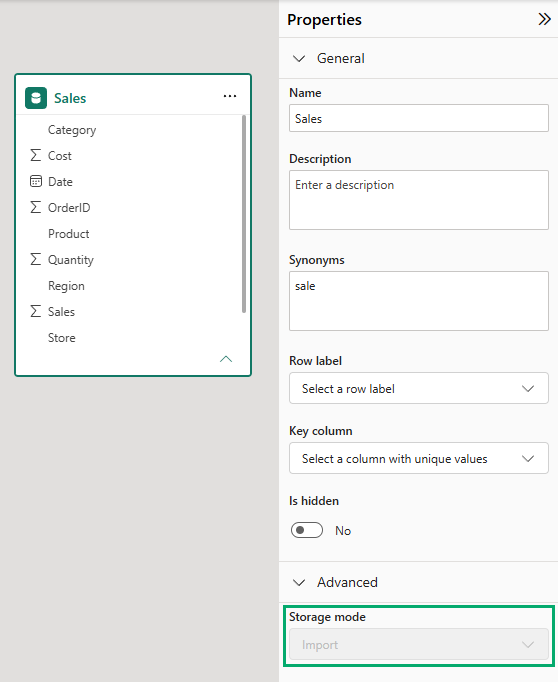
For the Poke Mart report from the First Report chapter, it says Import.
The box is grayed out, because a table from a file can only use Import.
For most tables, the storage mode is fixed when you add the table.
A table that was added with DirectQuery can be changed to Import or Dual later.
But you cannot change it back to DirectQuery.
This Tutorial Uses Import
All the practice data in this tutorial comes from files, so every table uses Import.
That also means you must refresh to see changes in the files.
The next page shows how.







